


You're between two clients and want to know who's booked tomorrow, or a regular asks for a Friday morning slot. Instead of opening the dashboard, you ask Claude or ChatGPT "What appointments do I have tomorrow?" or "Book a Haircut for Marko on Friday at 10 am", and the assistant checks availability and makes the booking in Trafft for you. The AI Assistants integration connects your Trafft account to the AI tool you already use, so you can manage appointments, customers and coupons just by chatting.
Which AI assistants can I connect to Trafft?
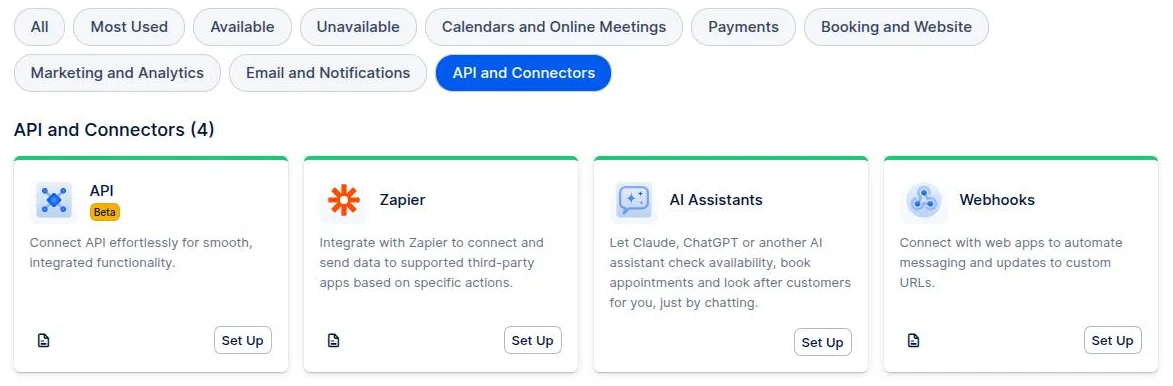
You can connect Claude, ChatGPT, Claude Code, Codex or any other AI app that supports remote MCP servers with OAuth sign-in. To see the connection steps, go to Integrations → API and Connectors and click Set Up on the AI Assistants card.
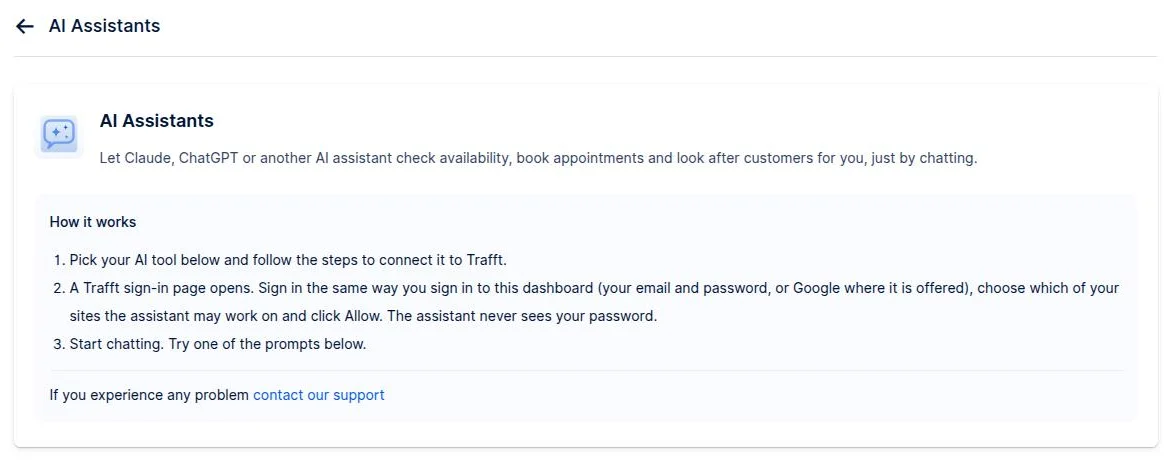
The setup page explains how the connection works and has a separate tab with step by step instructions for each AI tool. Below the steps, the Try asking section lists example prompts you can copy straight into your chat. If something goes wrong while connecting, click contact our support on the same page.
How do I connect an AI assistant to Trafft?
Every AI tool connects the same way: you add Trafft to the tool, a Trafft sign-in page opens, you sign in, choose which of your sites the assistant may work on and click Allow. Sign in the same way you sign in to the Trafft dashboard, with your email and password or with Google where it's offered. The assistant never sees your password.
Only the first step, adding Trafft to the tool, differs between AI tools, as described below.
How do I connect Claude?
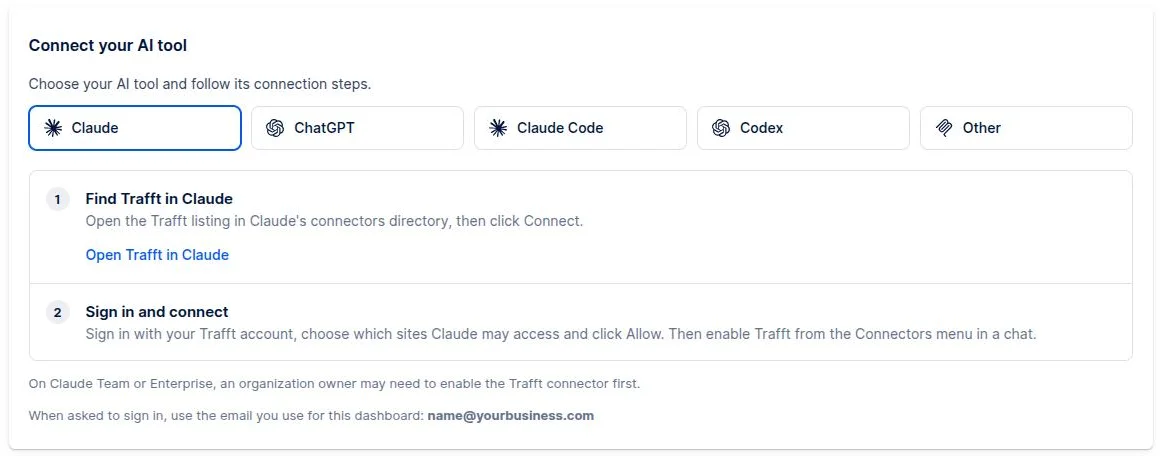
You can connect Claude through the Trafft listing in Claude's connectors directory:
- On the AI Assistants setup page, open the Claude tab and click Open Trafft in Claude, or open the Trafft listing in Claude directly.
- Click Connect.
- Sign in with your Trafft account, choose which sites Claude may access and click Allow.
- In a chat, enable Trafft from the Connectors menu.
On Claude Team or Enterprise, an organization owner may need to enable the Trafft connector first. When asked to sign in, use the email you use for the Trafft dashboard; the setup page shows which email that is.
How do I connect ChatGPT?
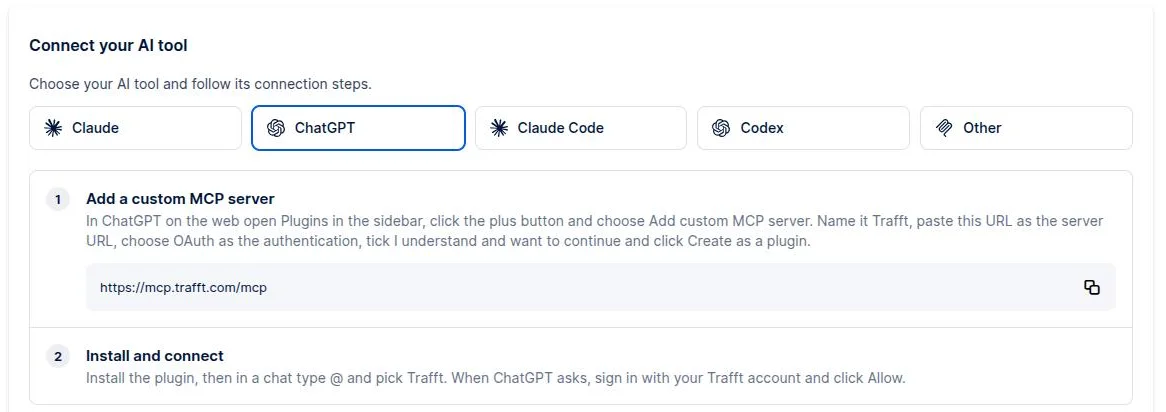
You can connect ChatGPT by adding Trafft as a custom MCP server in ChatGPT on the web:
- Open Plugins in the ChatGPT sidebar, click the plus button and choose Add custom MCP server.
- Name it Trafft and paste
https://mcp.trafft.com/mcpas the server URL. - Choose OAuth as the authentication, tick I understand and want to continue and click Create to add Trafft as a plugin.
- Install the plugin, then type @ in a chat and pick Trafft.
- When ChatGPT asks, sign in with your Trafft account and click Allow.
How do I connect Claude Code or Codex?
You can connect Claude Code or Codex by adding Trafft as an MCP server from your terminal.
For Claude Code, run claude mcp add --transport http trafft https://mcp.trafft.com/mcp. Then type /mcp inside Claude Code, choose trafft and select Authenticate. Your browser opens Trafft so you can approve access.
For Codex, run codex mcp add trafft --url https://mcp.trafft.com/mcp, then run codex mcp login trafft and approve access in the browser window that opens.
Can I connect a different AI app?
Yes, any AI app that supports remote MCP servers with OAuth sign-in can connect to Trafft. In your app's MCP settings, add a remote (HTTP) server named Trafft with the URL https://mcp.trafft.com/mcp. Then sign in with your Trafft account in the browser window that opens and click Allow.
What can the AI assistant do in Trafft?
Once connected, the assistant can check availability, book, reschedule and cancel appointments, manage customers and create coupons, all from plain language requests such as "Find free slots for a 60-minute Massage with Ana next week" or "Add a new customer: Jelena Jović, jelena@email.com". It works with:
- Appointments: list appointments for a day or a period, find free time slots, and book, reschedule, cancel or permanently delete appointments
- Customers: search, add, update and delete customers
- Coupons: create, update and delete discount coupons
- Services, employees and locations: look up details, prices and who provides which service where; the assistant can't create or edit these
If you allowed more than one site, the assistant can look things up across all of them at once, for example "Show me today's appointments across all my sites", while changes are always made on one site at a time. You can also combine Trafft with what your AI tool already does, for example "Find my next three free slots for a Consultation and draft an email offering them to jasmine@email.com".
What happens when the assistant books, reschedules or cancels an appointment?
The assistant follows the same rules as the dashboard, so the result is the same as if you made the change yourself. Every booking is checked against availability, and occupied time slots, times outside working hours and bookings over capacity are rejected. Rescheduling moves the same appointment and updates synced calendars, while cancelling keeps the appointment with the Canceled status and frees the time slot. Reschedule and cancellation notifications follow your notification settings.
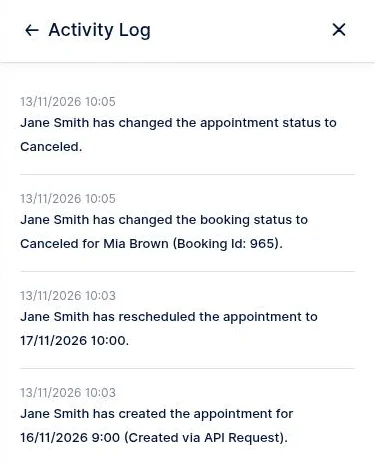
Before permanently deleting an appointment or a customer, the assistant shows what will be removed and asks you to confirm. A deleted appointment is treated as rejected, so the customer receives the Appointment Rejected notification. Every change also appears in the appointment's Activity Log under the name of the user who connected the assistant, and appointments it books are marked Created via API Request.
What can the AI assistant access in my account?
The assistant can only work on the sites you allowed when you signed in, and only with your own user permissions. If your role can't do something in the Trafft dashboard, the assistant can't do it either, so an assistant connected with an employee account gets that employee's access, not an admin's. To change what a user can do, refer to the Custom User Roles and Permissions documentation.
How do I disconnect an AI assistant from Trafft?
You disconnect an AI assistant in the AI tool itself, not in Trafft. Remove the Trafft connector, plugin or MCP server in your AI tool's settings. If you're not sure where that setting is, ask your AI tool how to disconnect Trafft.
What should I keep in mind when using an AI assistant?
A few things help the assistant do exactly what you want:
- Sign in with the same email you use for the Trafft dashboard.
- Name the service, employee, date and time in your request so the assistant books the right slot.
- Read the summary the assistant shows before you confirm a deletion.
- Don't delete an appointment when cancelling is enough; a canceled appointment keeps its history, and the customer gets a cancellation instead of a rejection.
Have more questions
If you face an issue, and cannot find an answer in the documentation, feel free to submit a support ticket!
Contact us