



A Thursday morning class at your studio is fully booked, but two more customers still want it. Instead of turning them away, Trafft lets them join a Waiting list for that exact time slot. When a spot opens up, everyone on the list gets an email, and the first customer to book takes the spot. Your calendar stays full and you don't have to chase anyone manually.
How do I turn on the waiting list for a service?
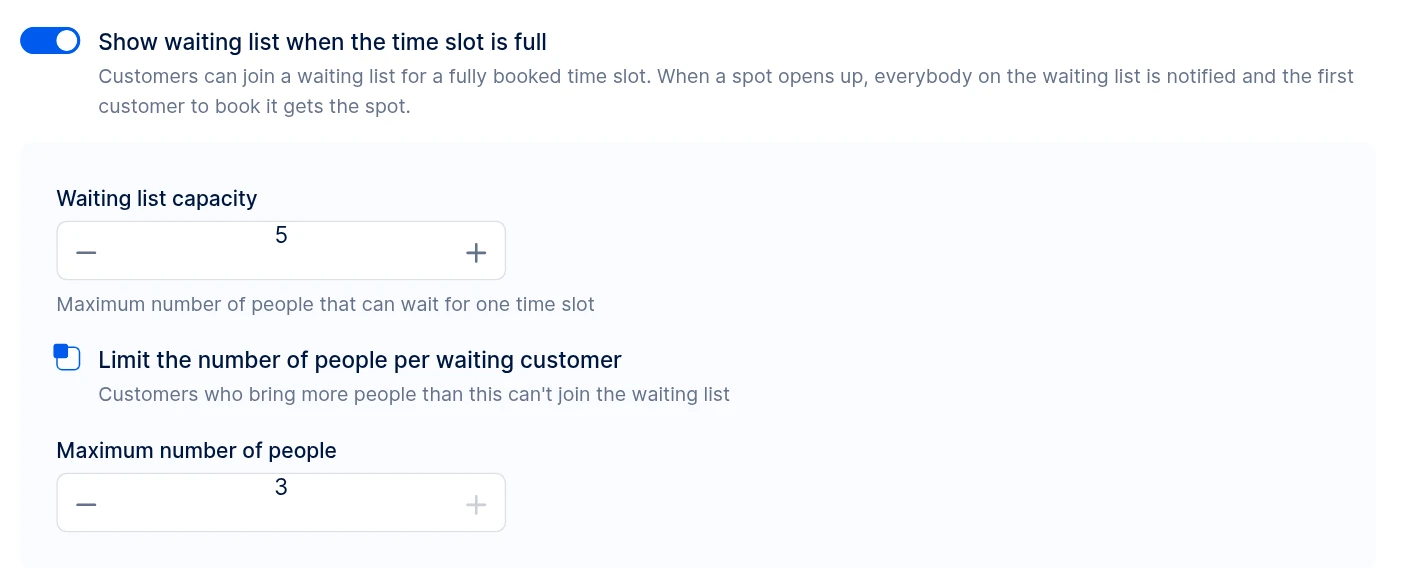
You can turn on the waiting list for each service separately. Go to Services, open the service and select Settings. Under Advanced settings, switch on Show waiting list when the time slot is full, then set:
- Waiting list capacity: the maximum number of people that can wait for one time slot
- Limit the number of people per waiting customer: when checked, the Maximum number of people field sets how many people one customer can bring. Customers who bring more people than this can't join the waiting list.
Click Save Changes to apply the settings.
How is waiting list capacity different from service capacity?
Service capacity and waiting list capacity are separate settings. The service Max Capacity (under Enable group booking) sets how many people can attend the appointment, while Waiting list capacity sets how many people can queue once the time slot is full. The waiting list capacity can be higher than the service capacity, but the Maximum number of people per waiting customer can't go above the service Max Capacity.
For example, if the service Max Capacity is 3 and the waiting list capacity is 5, a single waiting customer can bring at most 3 people in total.
What do customers see on the booking form?
Customers see a full time slot marked with a clock icon and a label such as Waiting list (2), where the number shows how many people are already waiting. When a customer selects that slot, the booking button changes to Join waiting list and there is no payment step.
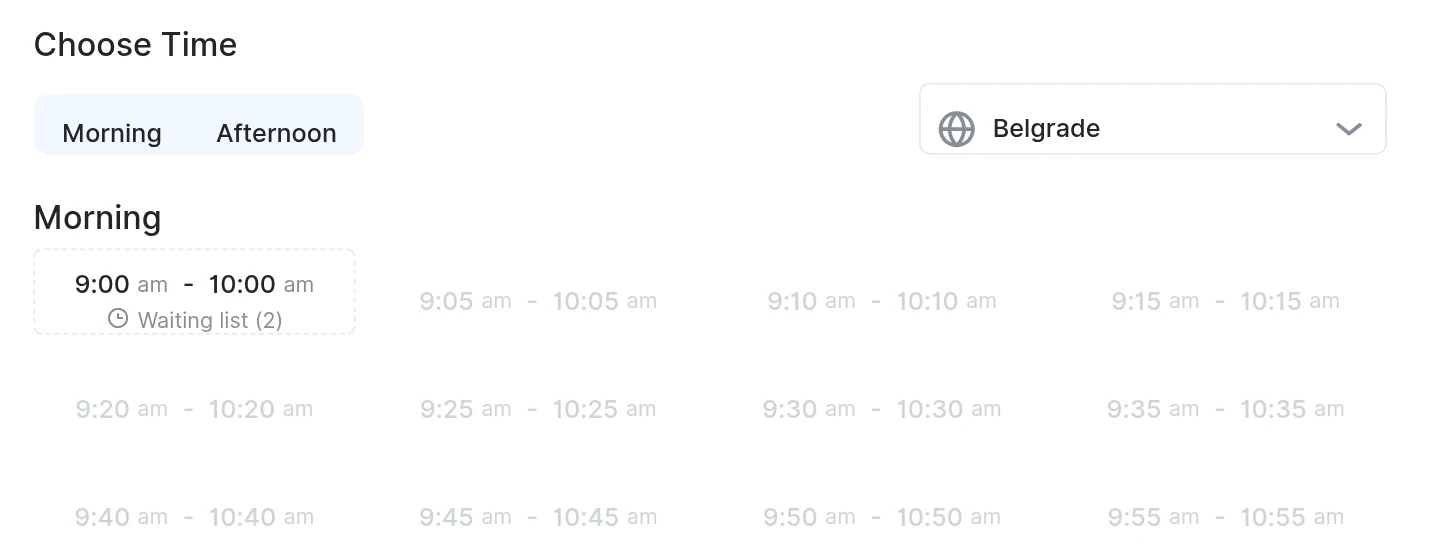
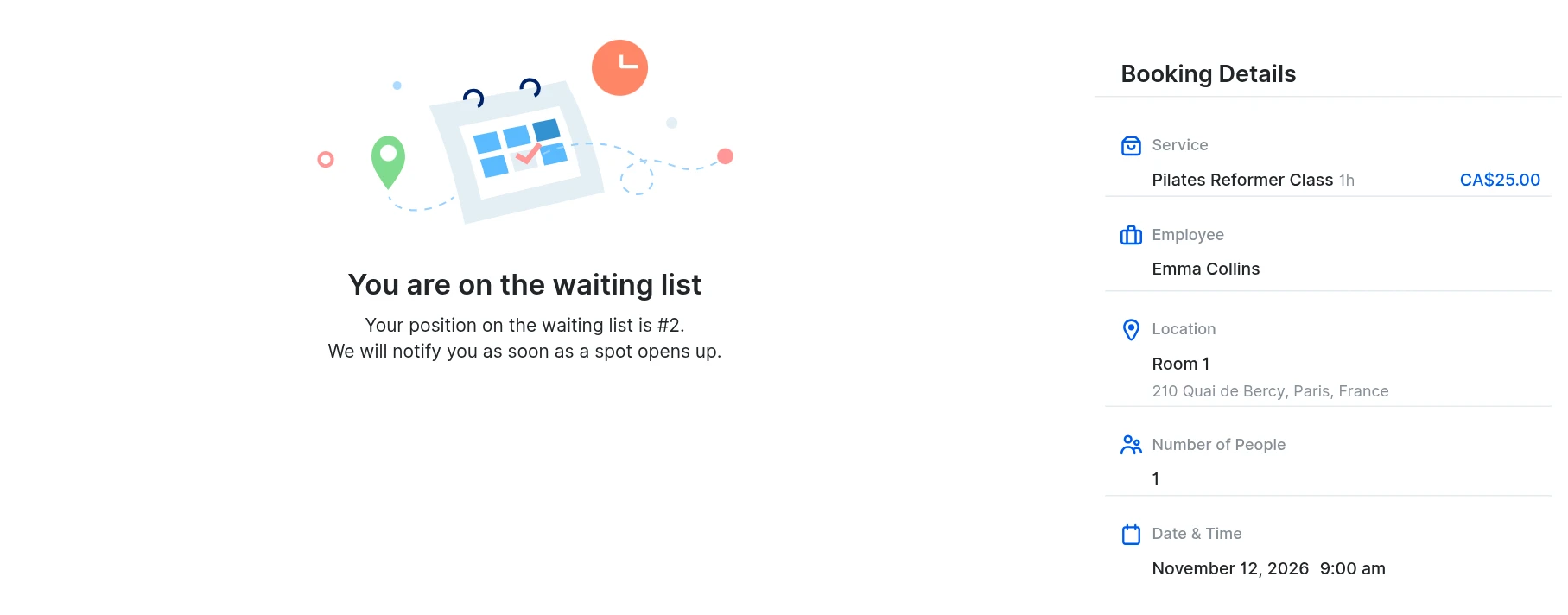
After joining, the customer sees a You are on the waiting list message with their position, and receives the Waiting List Confirmation email.
What happens when a spot opens up?
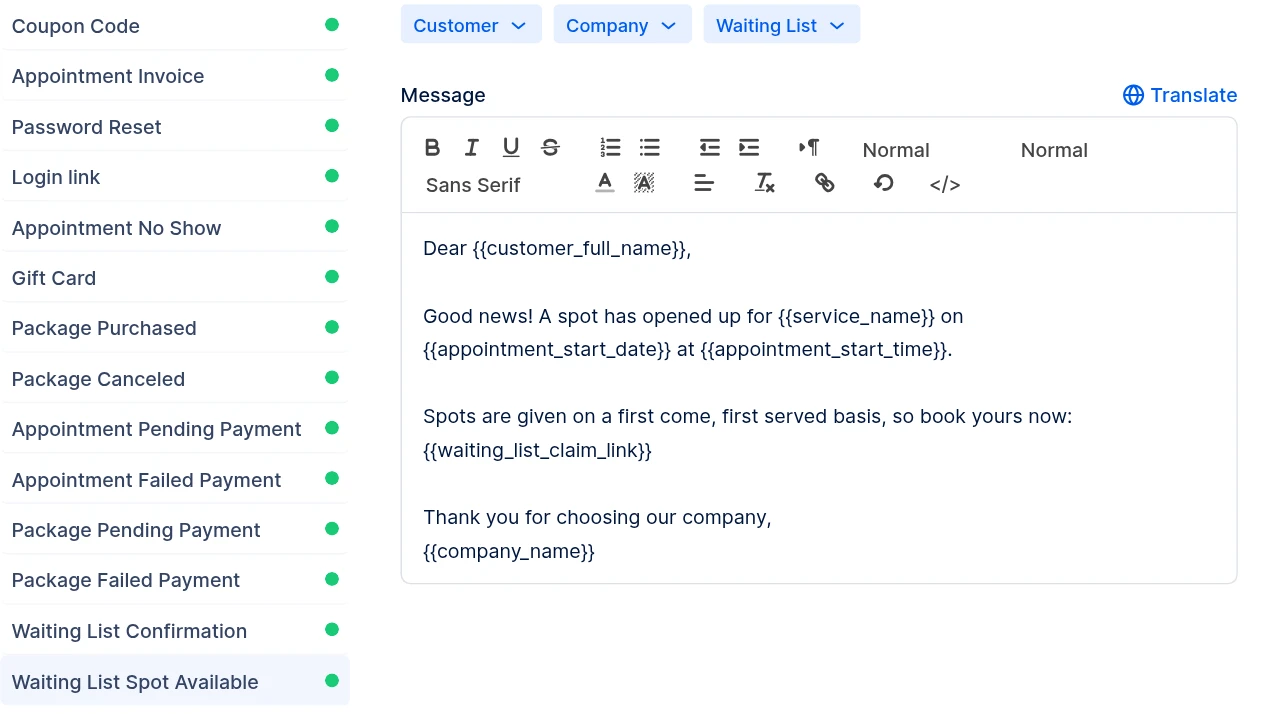
When a spot opens up in a full time slot, everyone on the waiting list for that slot receives the Waiting List Spot Available email with a link to book the spot. Spots are given on a first come, first served basis, so the first customer to book gets it, regardless of their position on the list. [CONFIRM: what customers see when they open the link after the spot is already taken]
Which notifications does the waiting list use?
The waiting list uses two notification templates, which you can find and edit in Settings → Email/SMS/WhatsApp notifications:
- Waiting List Confirmation: sent right after a customer joins the waiting list
- Waiting List Spot Available: sent to everyone on the waiting list when a spot opens up
Both templates have a Waiting List placeholder group with values such as the book the spot link, the leave the waiting list link and the customer's position on the waiting list. Add the leave the waiting list link if you want customers to be able to remove themselves from the queue.
Where can I see who is on the waiting list?
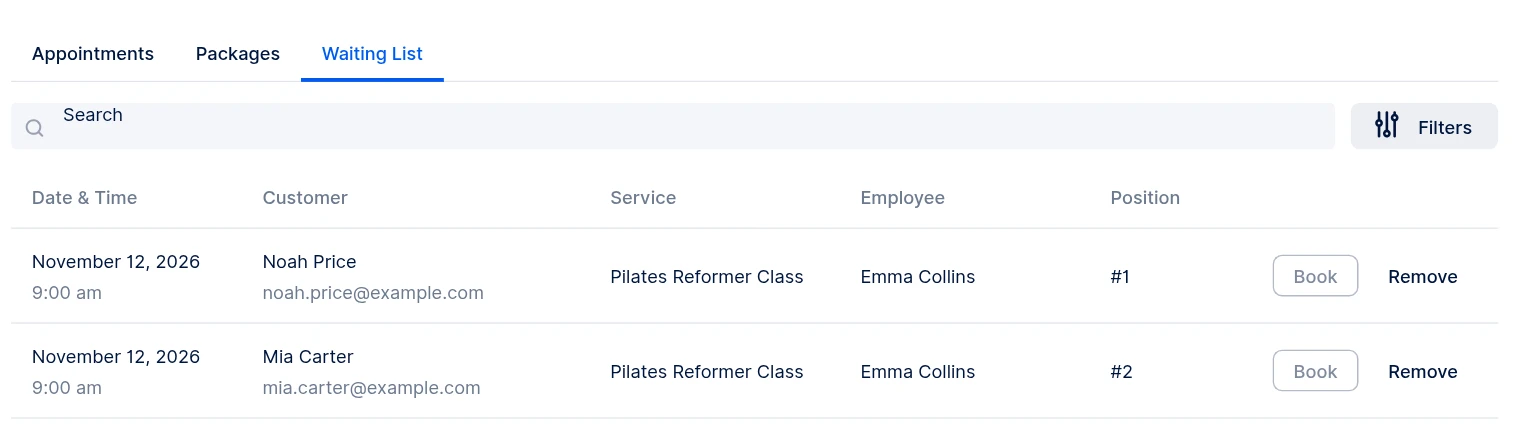
You can see everyone who is waiting in Appointments → Waiting List. Each row shows the date and time, customer, service, employee and the customer's position. From here you can:
- Book the customer into the time slot once a spot is free. While the slot is still full, the button is inactive.
- Remove the customer from the waiting list.
Can I add customers to the waiting list from the dashboard?
No. Customers join the waiting list from the booking website. If you add customers to a full appointment from the dashboard, Trafft doesn't place them on the waiting list and shows that the maximum number of approved customers is exceeded instead.
What should I keep in mind when using the waiting list?
A few things are worth knowing before you turn the waiting list on:
- Set it up per service; services without the setting turned on never show a waiting list.
- Customers don't pay when they join the waiting list, only when they book the spot.
- A position on the waiting list doesn't reserve the spot; whoever books first gets it.
- Remove customers who no longer need the slot from Appointments → Waiting List so they stop receiving notifications for it.
Have more questions
If you face an issue, and cannot find an answer in the documentation, feel free to submit a support ticket!
Contact us