






Begrenzte Zeit Begrenzte Zeit
Stürzen Sie sich in das Unternehmenswachstum
Bis zu 20%Off
Mit einem Gutscheincode BFCM70
Bis zu 20%Off
Schnapp dir das Angebot
ÜBERBLICK ÜBER FUNKTIONEN UND INTEGRATIONEN
  • Alle Funktionen
    Alle Funktionen

    Benachrichtigungen, Zeitzonen, Extras, Gutscheine, Rückerstattungen und mehr

  • Alle Integrationen
    Alle Integrationen

    WhatsApp, PayPal, Teams, Zoom, Zapier, Google Kalender und mehr

  • Über Google reservieren
    Über Google reservieren

    Buchungen über die Google Suche und Maps annehmen

  • WordPress-Plugin
    WordPress-Plugin

    Fügen Sie das Trafft-Buchungsformular zu jeder Seite Ihrer WordPress-Website hinzu

    Ressourcen
  • Trafft-Blog
    Blog 2
    Trafft-Blog

    Informieren Sie sich über die neuesten Informationen zu Branchentrends und holen Sie sich Tipps für die Führung eines Online-Dienstleistungsunternehmens

  • Anleitungen und Dokumentation
    Dokumente-2
    Anleitungen und Dokumentation

    Erhalten Sie eine detaillierte Erklärung, wie jede Trafft-Funktion und -Integration funktioniert

  • Unsere Geschichte Unsere Geschichte

    Lesen Sie über die Geschichte, Mission und die gemeinsamen Werte von Trafft

  • Investor Relations Investor Relations

    Melden Sie sich bei uns, wenn Sie daran interessiert sind, in Trafft zu investieren.

  • Affiliate-Partner Affiliate-Partner

    Begleiten Sie uns auf unserem Weg, Dienstleistungsunternehmen durch Automatisierung zum Erfolg zu verhelfen.

  • Warum Trafft Warum Trafft

    Erfahren Sie mehr darüber, warum Sie sich für Trafft entscheiden sollten

  • Partner Partner

    Werden Sie Partner von Trafft und erweitern Sie Ihre Reichweite auf dem Markt

  • Kontaktieren Sie uns Kontaktieren Sie uns

    Bei Fragen oder Anregungen können Sie sich gerne an mich wenden.

Funktionen
ÜBERBLICK ÜBER FUNKTIONEN UND INTEGRATIONEN
  • Alle Funktionen Alle Funktionen

    Benachrichtigungen, Zeitzonen, Extras, Gutscheine, Rückerstattungen und mehr

  • Alle Integrationen Alle Integrationen

    WhatsApp, PayPal, Teams, Zoom, Zapier, Google Kalender und mehr

  • Über Google reservieren Über Google reservieren

    Buchungen über die Google Suche und Maps annehmen

  • WordPress-Plugin WordPress-Plugin

    Fügen Sie das Trafft-Buchungsformular zu jeder Seite Ihrer WordPress-Website hinzu

Ressourcen
    Ressourcen
  • Trafft-Blog

    Informieren Sie sich über die neuesten Informationen zu Branchentrends und holen Sie sich Tipps für die Führung eines Online-Dienstleistungsunternehmens

    Blog 2
    Trafft-Blog
  • Anleitungen und Dokumentation

    Erhalten Sie eine detaillierte Erklärung, wie jede Trafft-Funktion und -Integration funktioniert

    Dokumente-2
    Anleitungen und Dokumentation
Über uns
  • Unsere Geschichte Unsere Geschichte

    Lesen Sie über die Geschichte, Mission und die gemeinsamen Werte von Trafft

  • Investor Relations Investor Relations

    Melden Sie sich bei uns, wenn Sie daran interessiert sind, in Trafft zu investieren.

  • Affiliate-Partner Affiliate-Partner

    Begleiten Sie uns auf unserem Weg, Dienstleistungsunternehmen durch Automatisierung zum Erfolg zu verhelfen.

  • Warum Trafft Warum Trafft

    Erfahren Sie mehr darüber, warum Sie sich für Trafft entscheiden sollten

  • Partner Partner

    Werden Sie Partner von Trafft und erweitern Sie Ihre Reichweite auf dem Markt

  • Kontaktieren Sie uns Kontaktieren Sie uns

    Bei Fragen oder Anregungen können Sie sich gerne an mich wenden.

Trafft Hacks: How to Translate Your Booking Website

Startseite» Blog» Trafft Hacks: How to Translate Your Booking Website
Two people working together on translating trafft booking website into different languages

As more businesses try to expand their services beyond their country's borders, language may be the limiting factor. Translating your booking website into other languages can expand your reach and make your services available to wider audiences.

Trafft appointment booking website comes in English as a default language but can be easily translated into one of the 31 currently available languages. This includes German, French, Italian, Arabic, and many more.

How Can You Change the Default Language on Your Booking Website?

If you want to change the default language and translate your booking website, here are the necessary steps:

  1. Log into your Trafft account
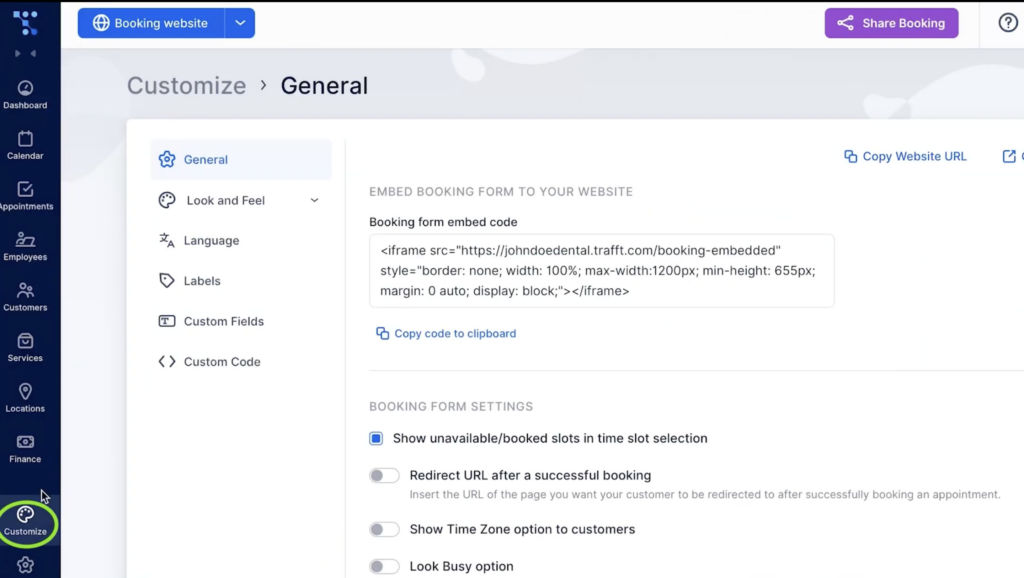
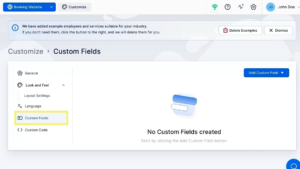
  2. Select the Customize tabGeneral settings for customizing Trafft's booking website
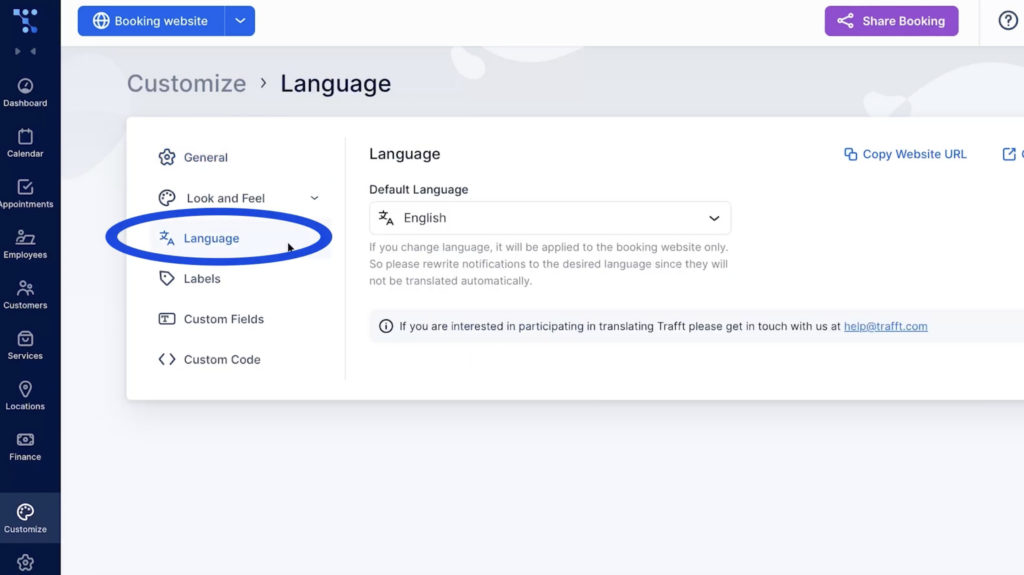
  3. Choose the Language option Setting up default language option in Trafft
  4. Select one of the available languages from the drop-down menu.

After you save the changes, you can go back to the booking website, and your new language should be there.

How Can You Make Your Booking Website Multilingual?

Changing the default language will also modify the displayed language for your customers. However, if you want to give your clients an option to choose the language they prefer, you can do so as well. Here are the steps you should take:

1. Log into your Trafft account and go to the Settings tab.
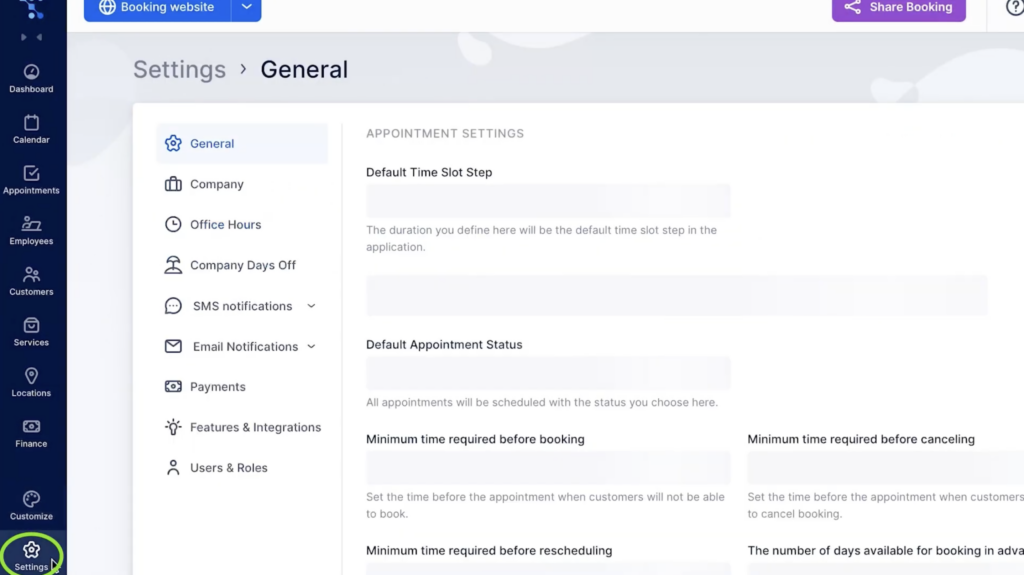
General Settings in Trafft's account

2. Then select Features & Integrations
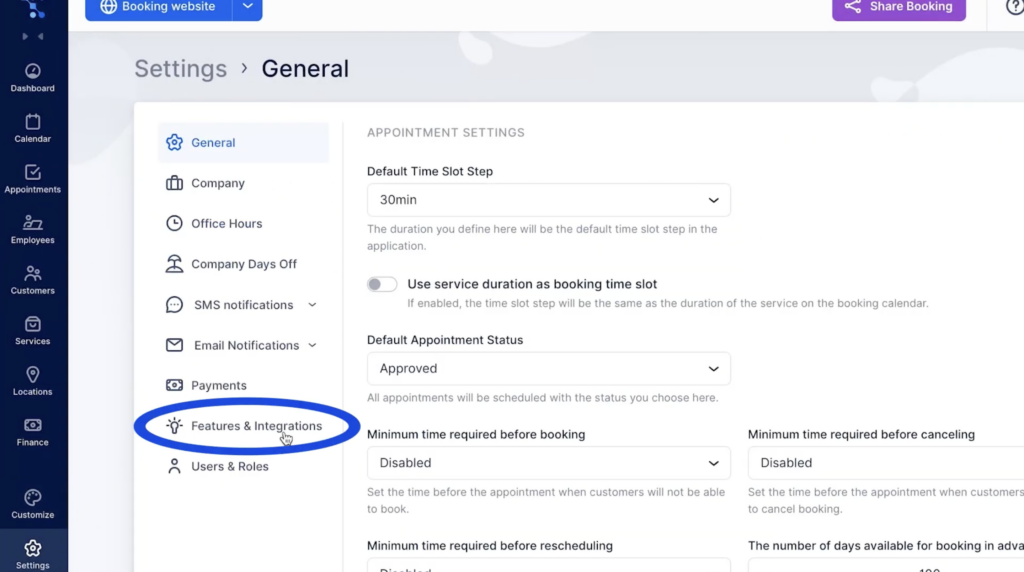
Features and Integrations available for the Trafft booking website

Scroll down and find Mehrsprachige Unterstützung. Enable this feature by pressing the Activate button.
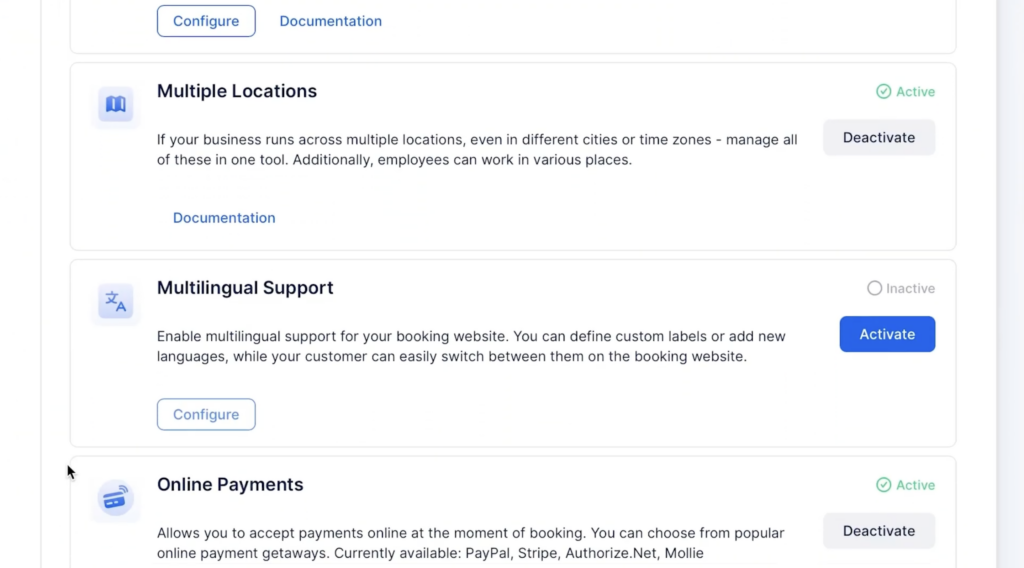
Multilingual support available for a booking website

Go back to Customize and choose the Language option. Here, you can set your default language and also choose additional languages.
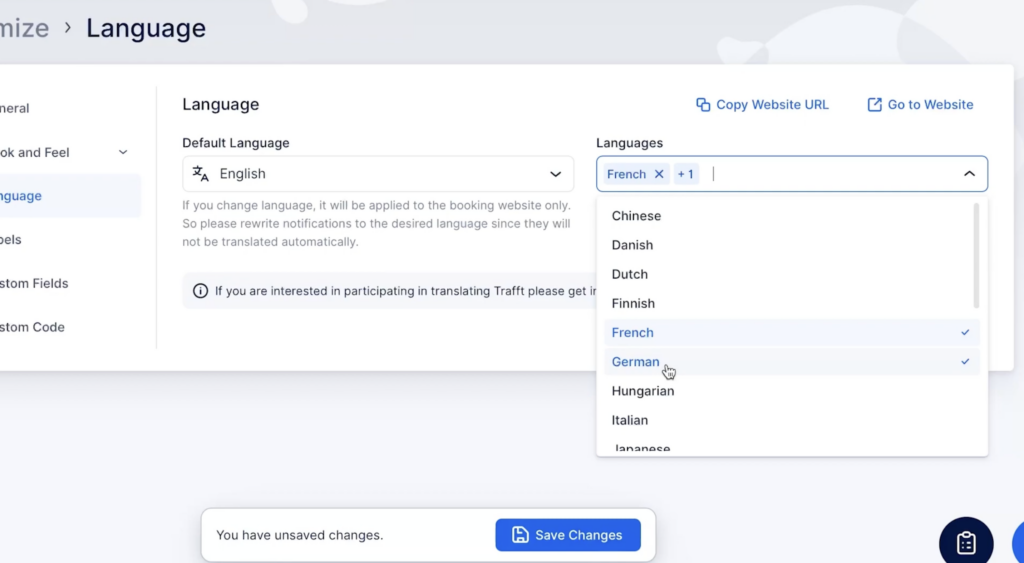
Additional languages in Trafft

After saving these changes, your customers will have the flexibility to choose their preferred language seamlessly throughout the booking process. All they have to do is select the language from the drop-down menu on the booking website.
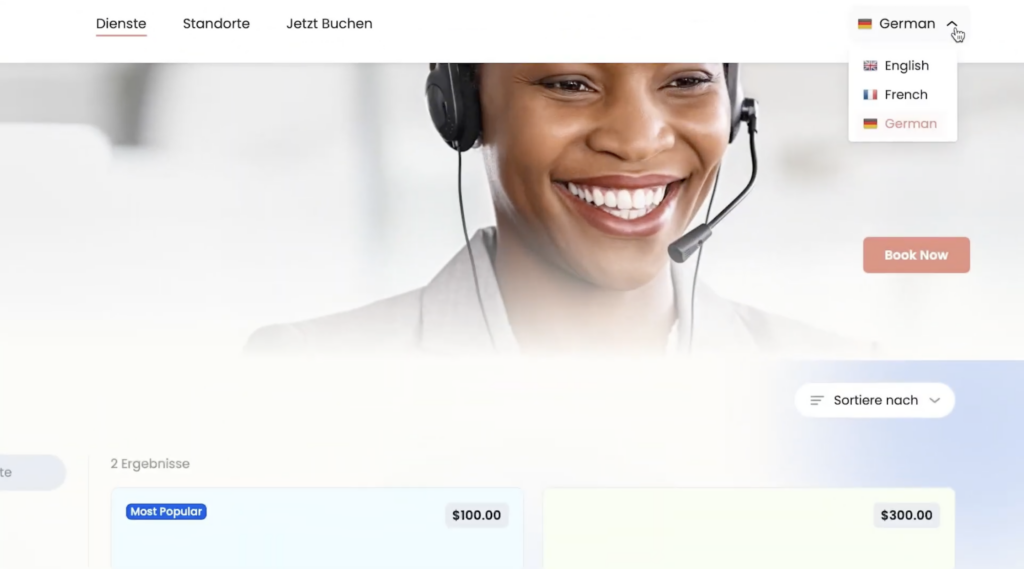
Example of multiple language options on a booking website

Keep in mind that the changes will apply exclusively to your booking website.

How to Change the Language of Notifications

The default notification language is only available in English as of right now, but you can customize it and input any language you want. Here is how to do so:

1. Go into Settings and then select Email Notifications
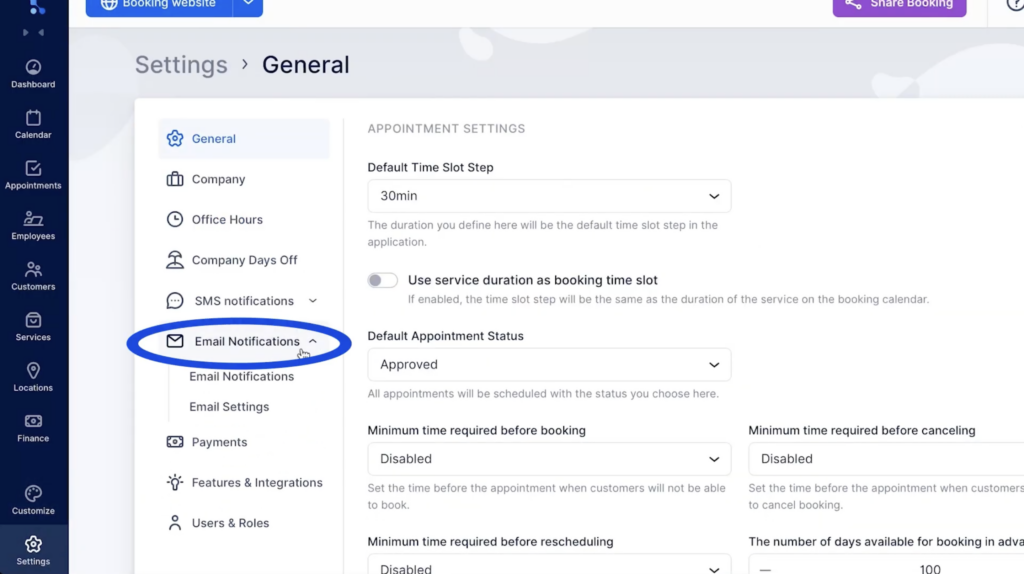
Setting up different languages for email notifications

Click on the Translate button, and input different text for every language you selected to appear on your booking website.
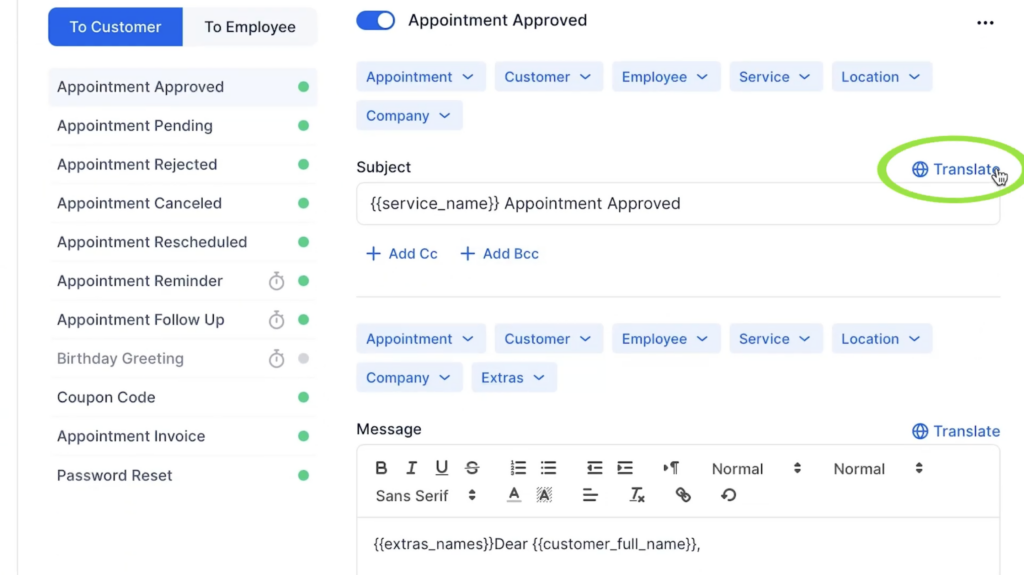
Translate option in Trafft for enabling notification on multiple languages

Having trouble following these instructions? Explore our detailed documentation or watch our quick video tutorial to learn how to set everything up.

Happy scheduling!

Jetzt kostenlos testen