






Tiempo limitado Tiempo limitado
Caiga en el crecimiento empresarial
Hasta 20%Off
Con un código de descuento BFCM70
Hasta 20%Off
Aprovecha la oferta
RESUMEN DE CARACTERÍSTICAS E INTEGRACIONES
  • Todas las funciones
    Todas las funciones

    Notificaciones, Zonas horarias, Extras, Cupones, Reembolsos y más

  • Todas las integraciones
    Todas las integraciones

    Whatsapp, Paypal, Teams, Zoom, Zapier, Google Calendar y más

  • Reservar con Google
    Reservar con Google

    Acepta reservas a través de la Búsqueda y Maps de Google

  • Complemento de WordPress
    Complemento de WordPress

    Añade el formulario de reservas de Trafft a cualquier página de tu sitio web de WordPress

    Recursos
  • Blog de Trafft
    blog-2
    Blog de Trafft

    Consulta la información más reciente sobre las tendencias de la industria y obtén asesoramiento para administrar un negocio de servicios en línea

  • Guías y documentación
    documentos-2
    Guías y documentación

    Obtén una explicación detallada de cómo funciona cada función e integración de Trafft

  • Nuestra Historia Nuestra Historia

    Lee sobre la historia, la misión y los valores que compartimos de Trafft

  • Relación con Inversores Relación con Inversores

    Contáctanos si estás interesado en invertir en Trafft

  • Socios afiliados Socios afiliados

    Únete a nosotros en nuestro viaje para ayudar a las empresas de servicios a prosperar a través de la automatización

  • ¿Por qué Trafft ¿Por qué Trafft

    Obtén más información sobre por qué deberías elegir Trafft

  • Socios Socios

    Asóciate con Trafft y expande tu alcance en el mercado

  • Contáctenos Contáctenos

    No dudes en ponerte en contacto si tienes alguna pregunta o sugerencia

Características
RESUMEN DE CARACTERÍSTICAS E INTEGRACIONES
Recursos
    Recursos
  • Blog de Trafft

    Consulta la información más reciente sobre las tendencias de la industria y obtén asesoramiento para administrar un negocio de servicios en línea

    blog-2
    Blog de Trafft
  • Guías y documentación

    Obtén una explicación detallada de cómo funciona cada función e integración de Trafft

    documentos-2
    Guías y documentación
Sobre nosotros
  • Nuestra Historia Nuestra Historia

    Lee sobre la historia, la misión y los valores que compartimos de Trafft

  • Relación con Inversores Relación con Inversores

    Contáctanos si estás interesado en invertir en Trafft

  • Socios afiliados Socios afiliados

    Únete a nosotros en nuestro viaje para ayudar a las empresas de servicios a prosperar a través de la automatización

  • ¿Por qué Trafft ¿Por qué Trafft

    Obtén más información sobre por qué deberías elegir Trafft

  • Socios Socios

    Asóciate con Trafft y expande tu alcance en el mercado

  • Contáctenos Contáctenos

    No dudes en ponerte en contacto si tienes alguna pregunta o sugerencia

Trafft Hacks: How to Integrate the Trafft Chatbot

Inicio» Blog» Trafft Hacks: How to Integrate the Trafft Chatbot
how to integrate the trafft chatbot cover image

For a business owner, staying on top of clients' inquiries and anticipating their needs is essential for maintaining the highest level of satisfaction. Yet, having someone taking care of it all can be a huge burden to your funds.

Implementing a chatbot can be a game-changer in this regard. These virtual assistants provide immediate, round-the-clock support, handling bookings and answering frequently asked questions. And these are just some of the benefits of a chatbot.

This not only streamlines your client interactions but also frees up your time to focus on more complex tasks. If you are looking to improve your operational efficiency and streamline your bookings with chatbot, see below how you can integrate the Trafft Chatbot.

How to Integrate the Trafft Chatbot to Your Booking Page?

Trafft Chatbot can be integrated into your booking page in just a few simple steps:

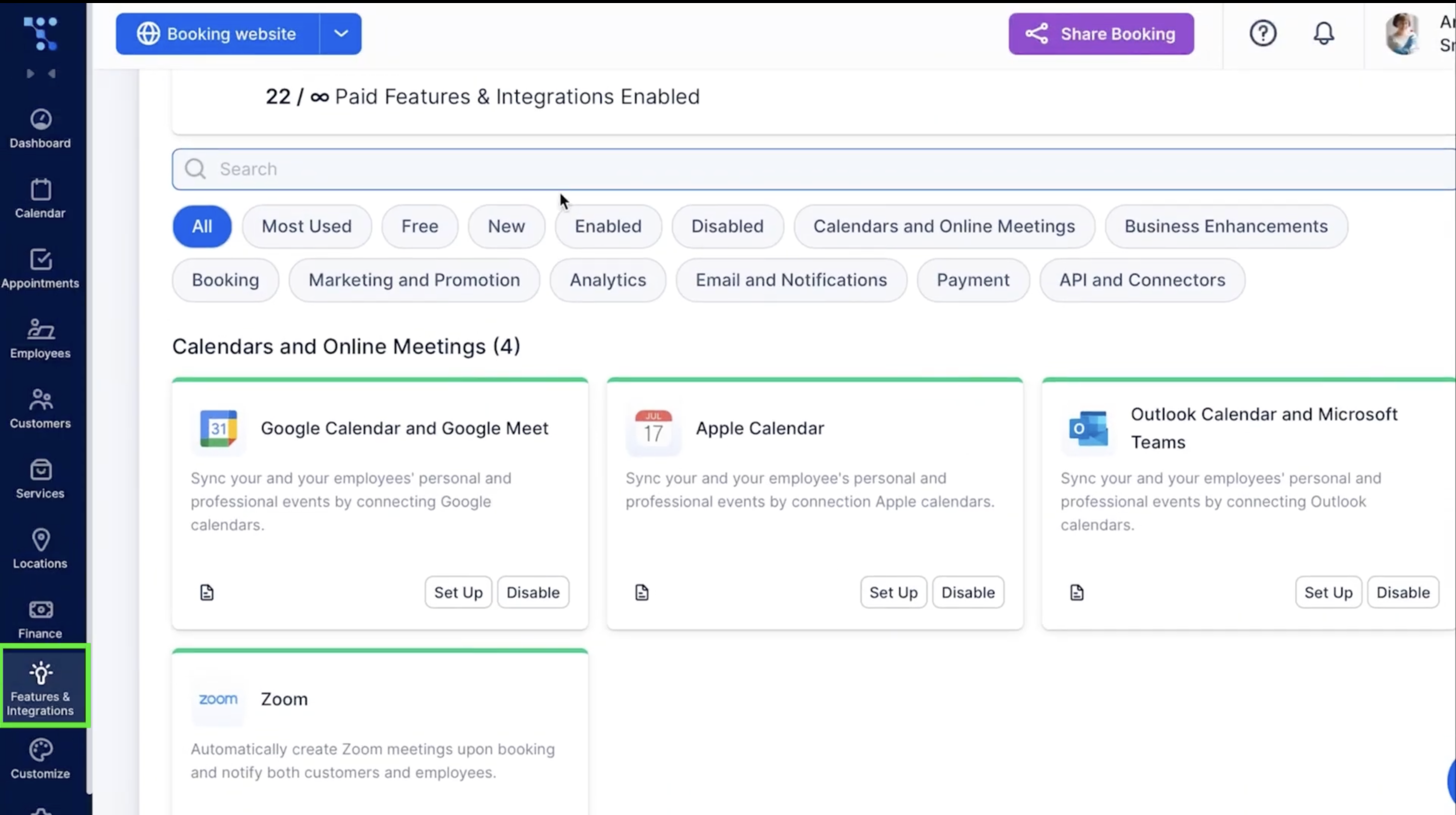
  1. Log into your Trafft account and navigate to Features & Integrations TabTrafft's Features and Integrations tab
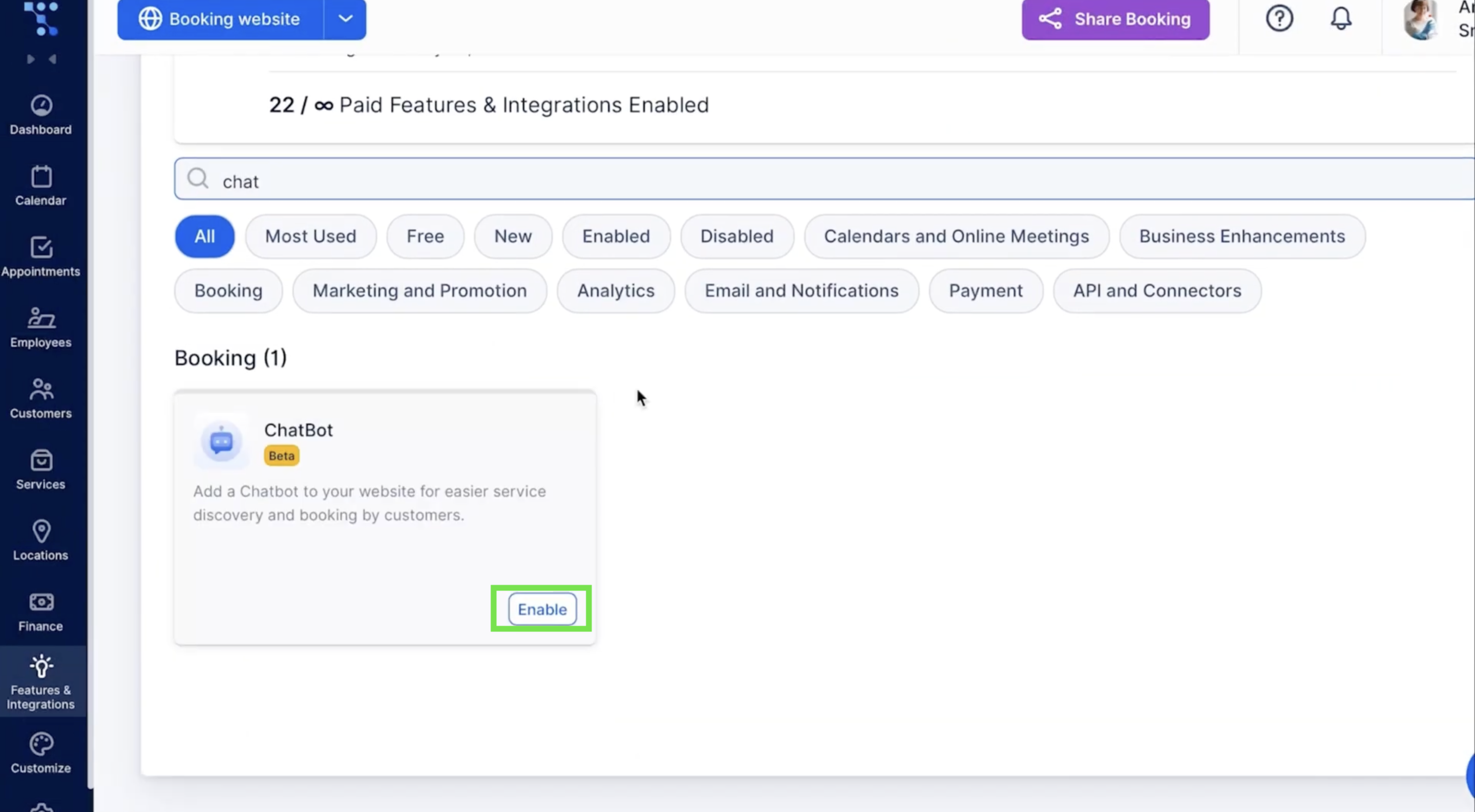
  2. In the search bar, type in ChatBot and click EnableEnabling a chatbot in the Trafft account
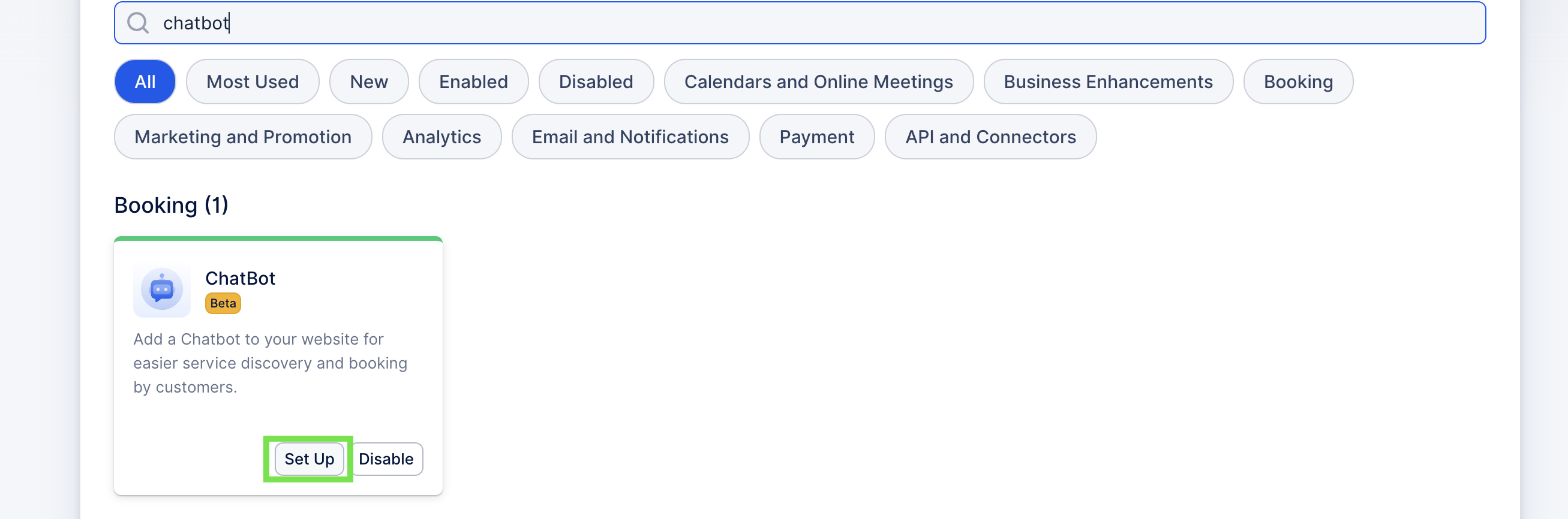
  3. After that's done, click on Set UpStep-by-step guide on how to integrate Trafft chatbot into your booking website
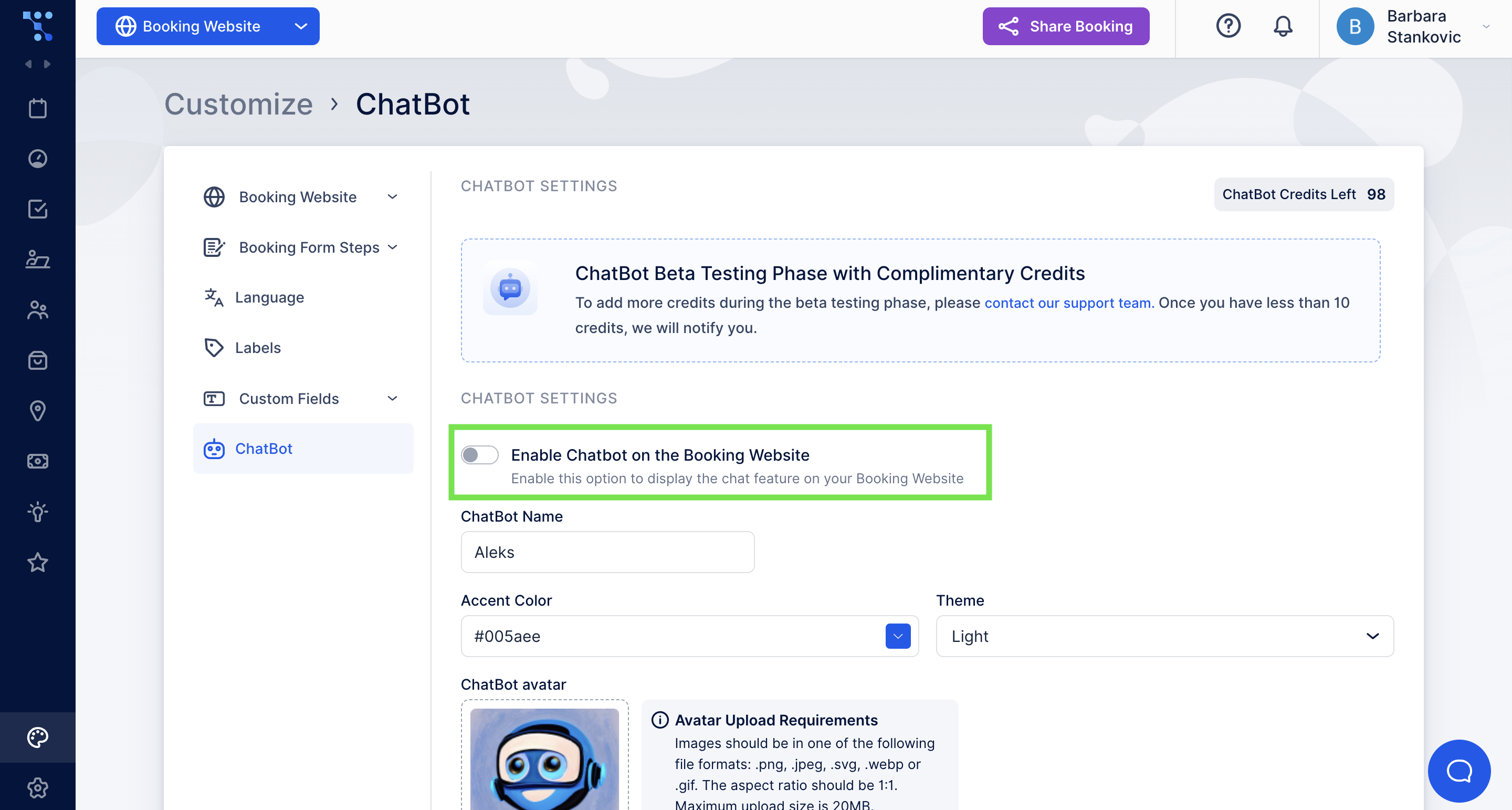
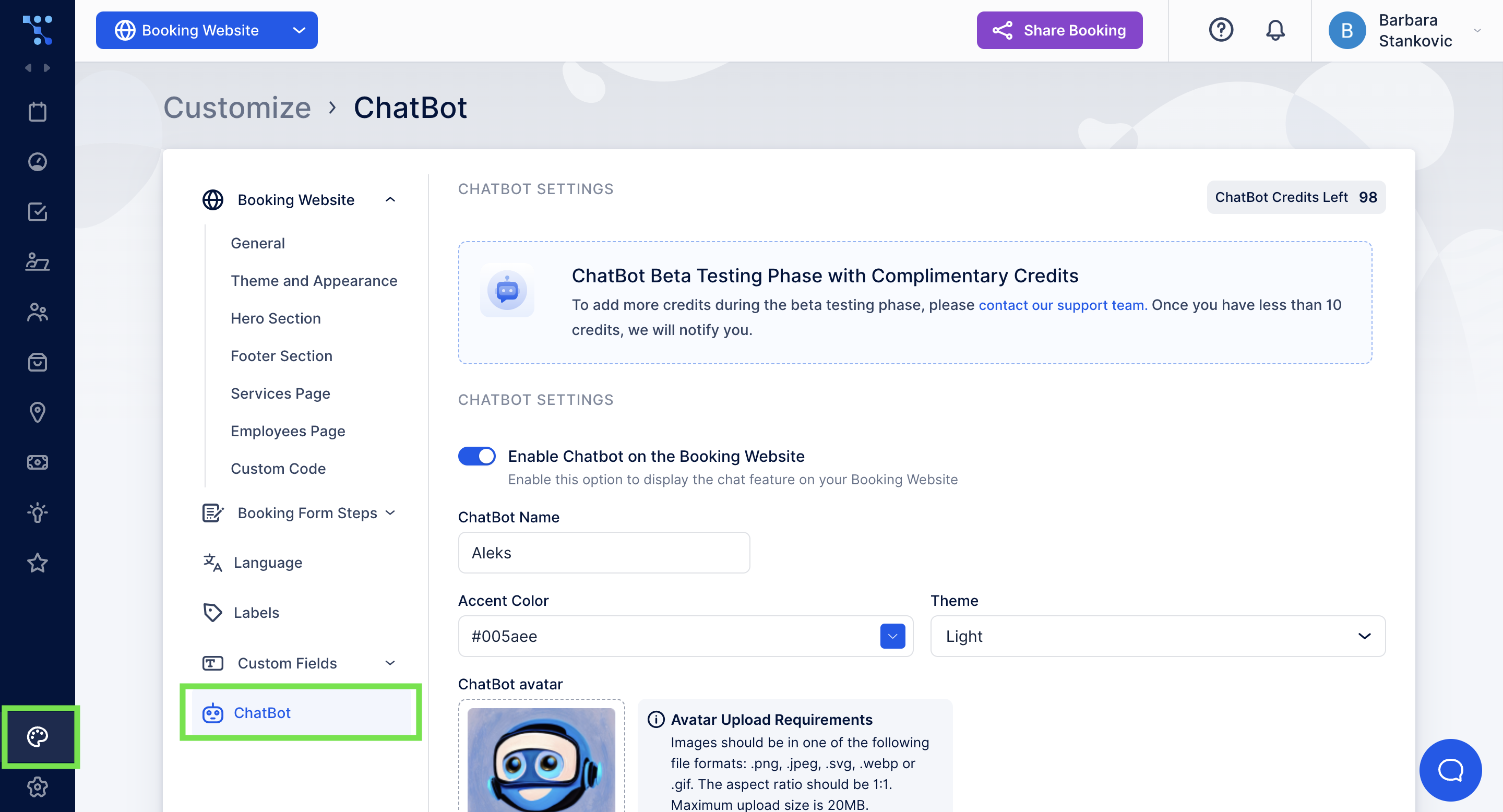
  4. In ChatBot settings, turn on Enable Chatbot on the Booking WebsiteEnabling Trafft Chatbot and the booking page

This will instantly integrate the Trafft chatbot into your booking form making it accessible to your clients. Now, they can easily schedule an appointment through a Chatbot interface.

How Can I Customize My Trafft ChatBot?

If you are looking to adjust your chatbot name and appearance so it better fits your brand, follow these steps:

  1. Go to the Customize Tab y select ChatBot from the menuCustomization of the Trafft chatbot appearance
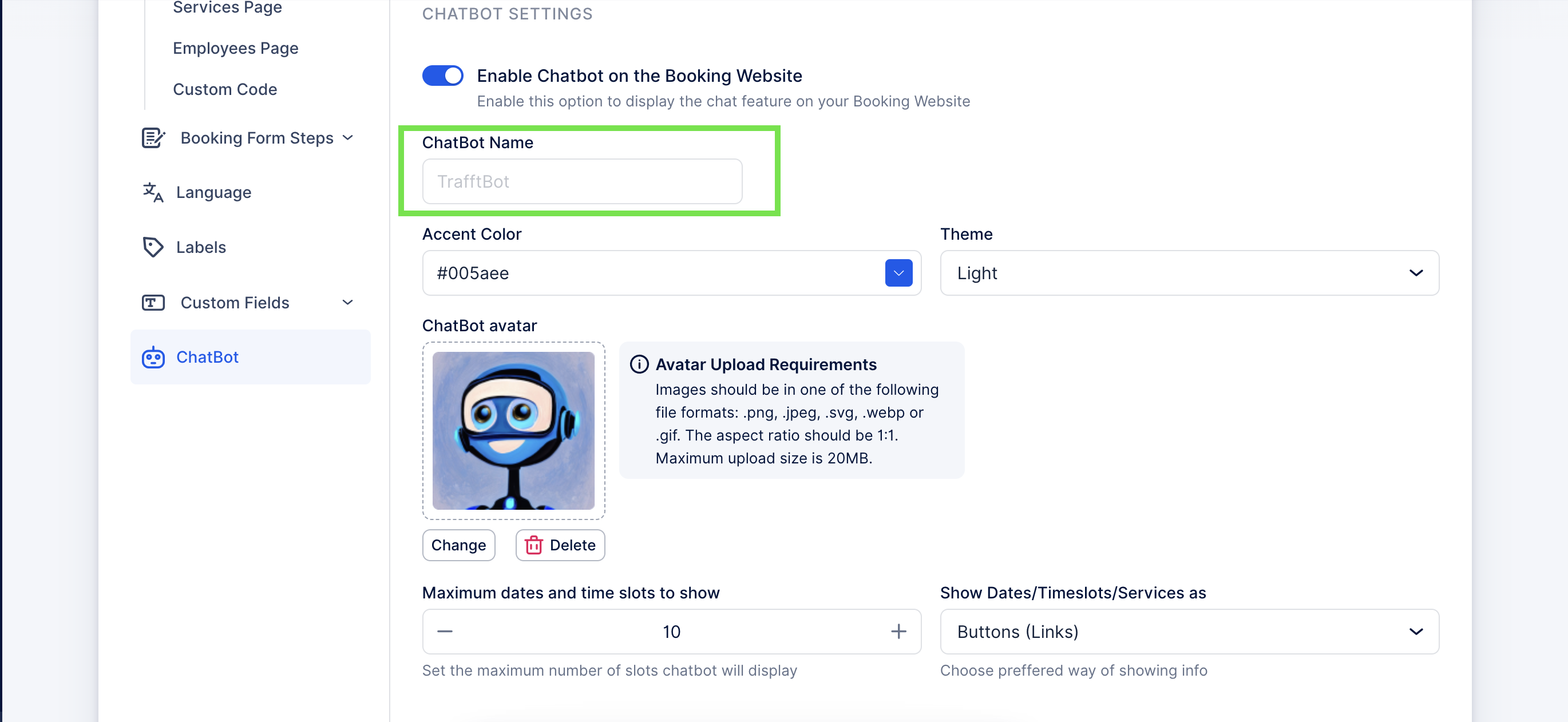
  2. In the ChatBot Name field write how’d you like your bot to be called. The name will be visible to your customers once they start a conversation with a chatbot. If this field is left empty, your bot will be called TrafftBot. Chatbot name field for changing how your bot is called
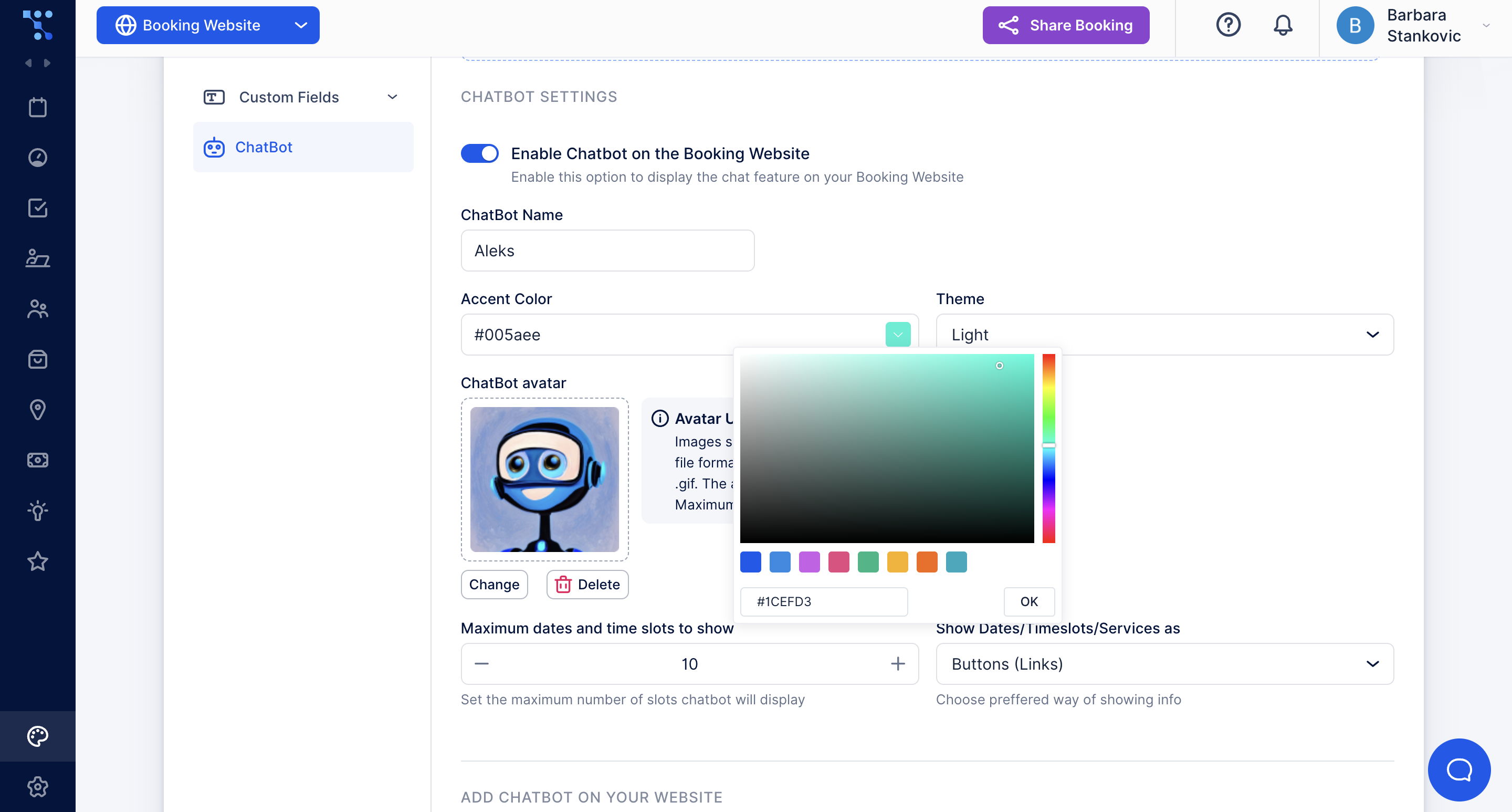
  3. Below the name, in the Accent Color field, you can see the current color of the chatbot on your booking page. If you wish to change it, click on the field and select the preferred color for the text and buttons used in chatbot conversation. Customization of the chatbot appearance and accent colors used for buttons in a conversation
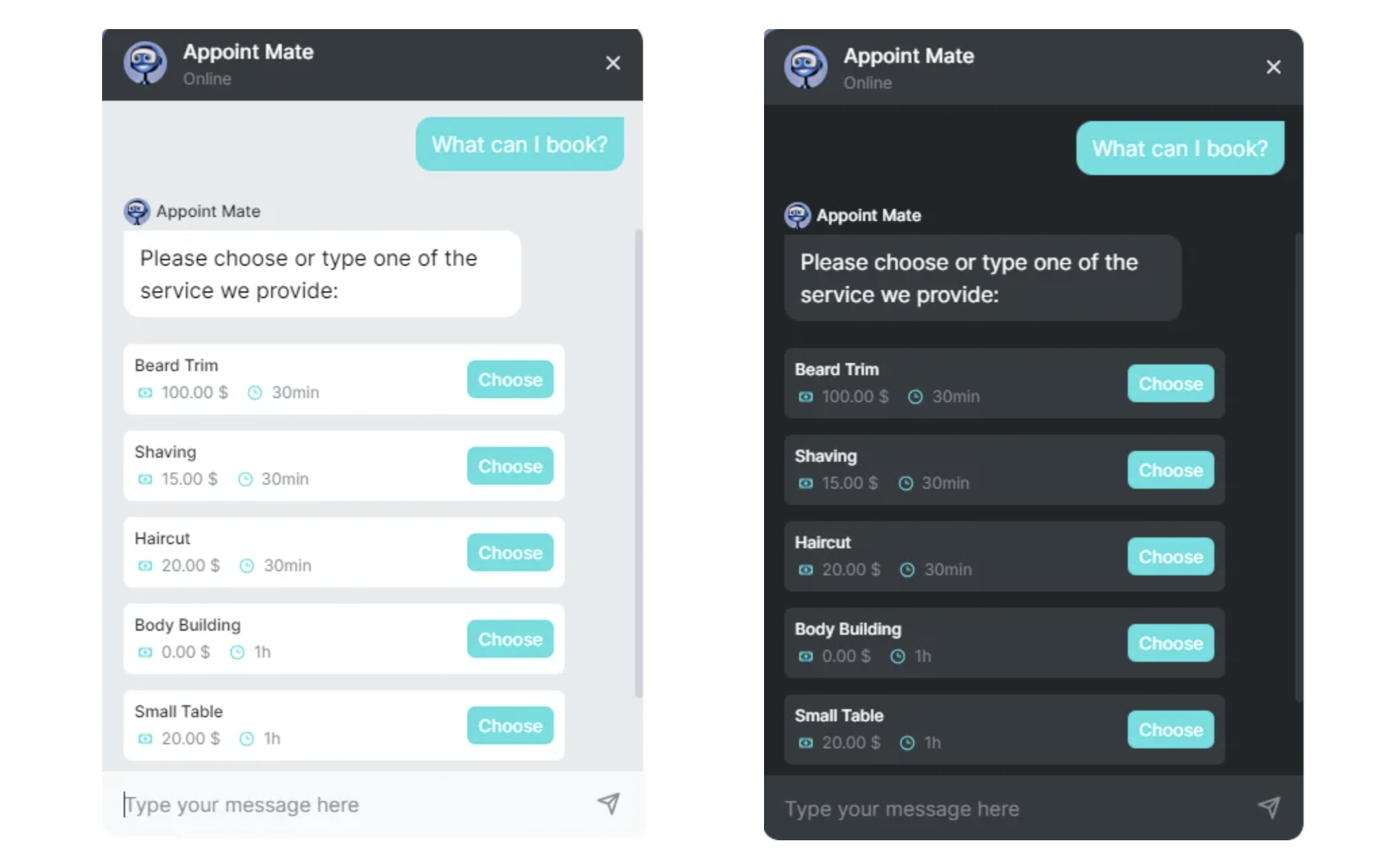
  4. Select either a Light or Dark theme for the background of your chatbot interface.Trafft chatbot light and dark themes
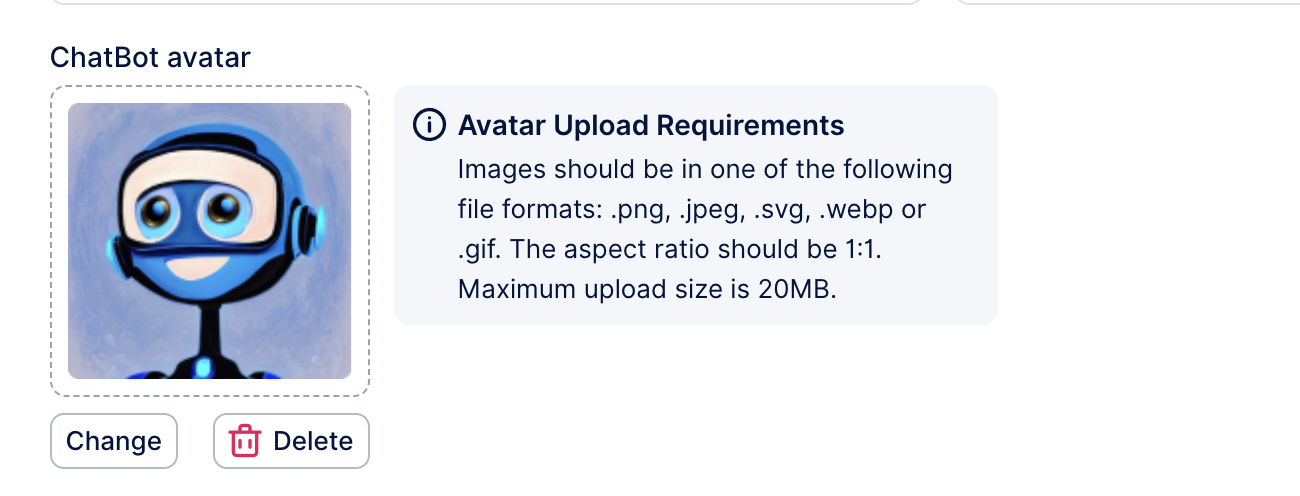
  5. You can also upload a different picture for your ChatBot avatar so it can better represent your brand.Default chatbot avatar that can be customized so it better represents your brand

In the chatbot settings, you can also select the number of time slots offered and choose if you want these time slots to be proposed as text or buttons.
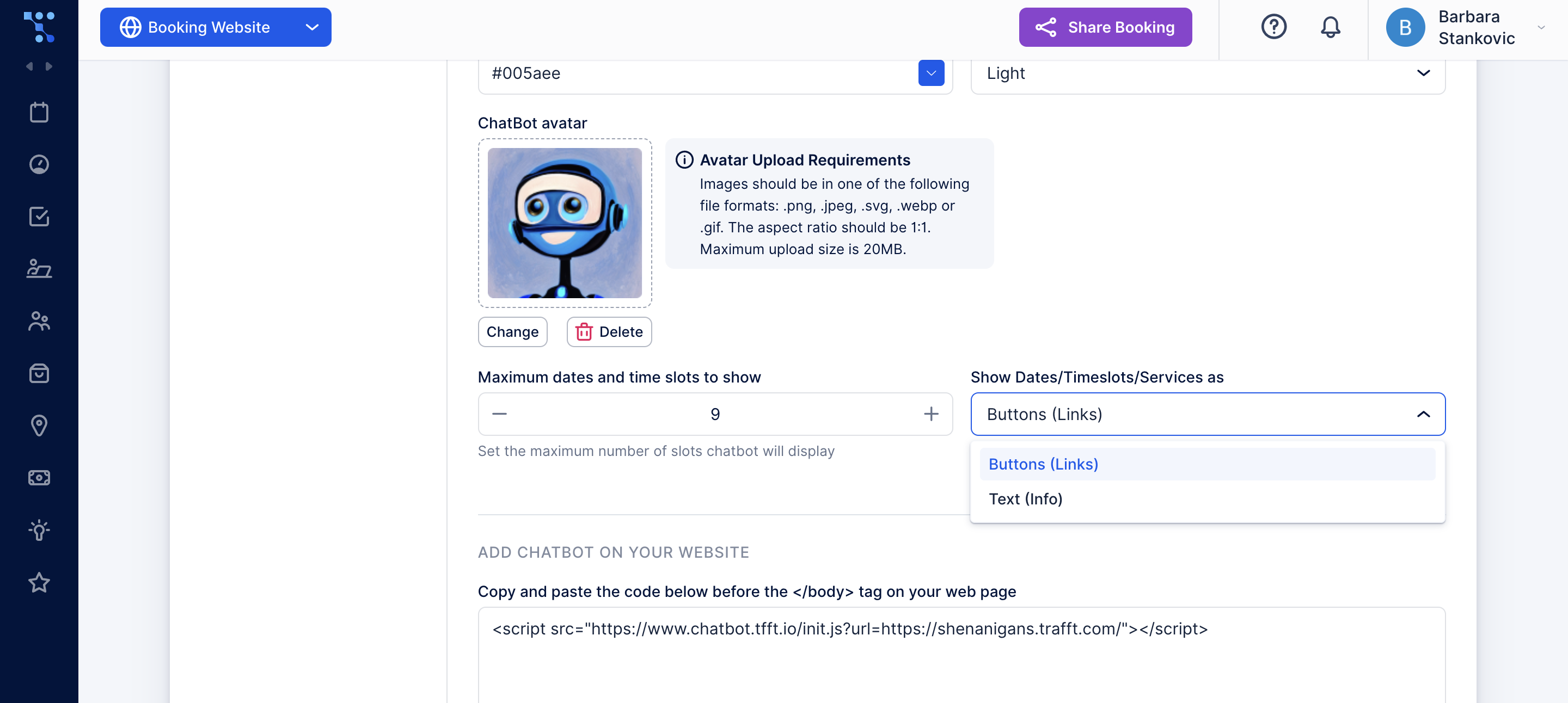
Customization of the date and time slots chatbots offer throughout a conversation with a client

How to Integrate the Trafft Chatbot to Your Website?

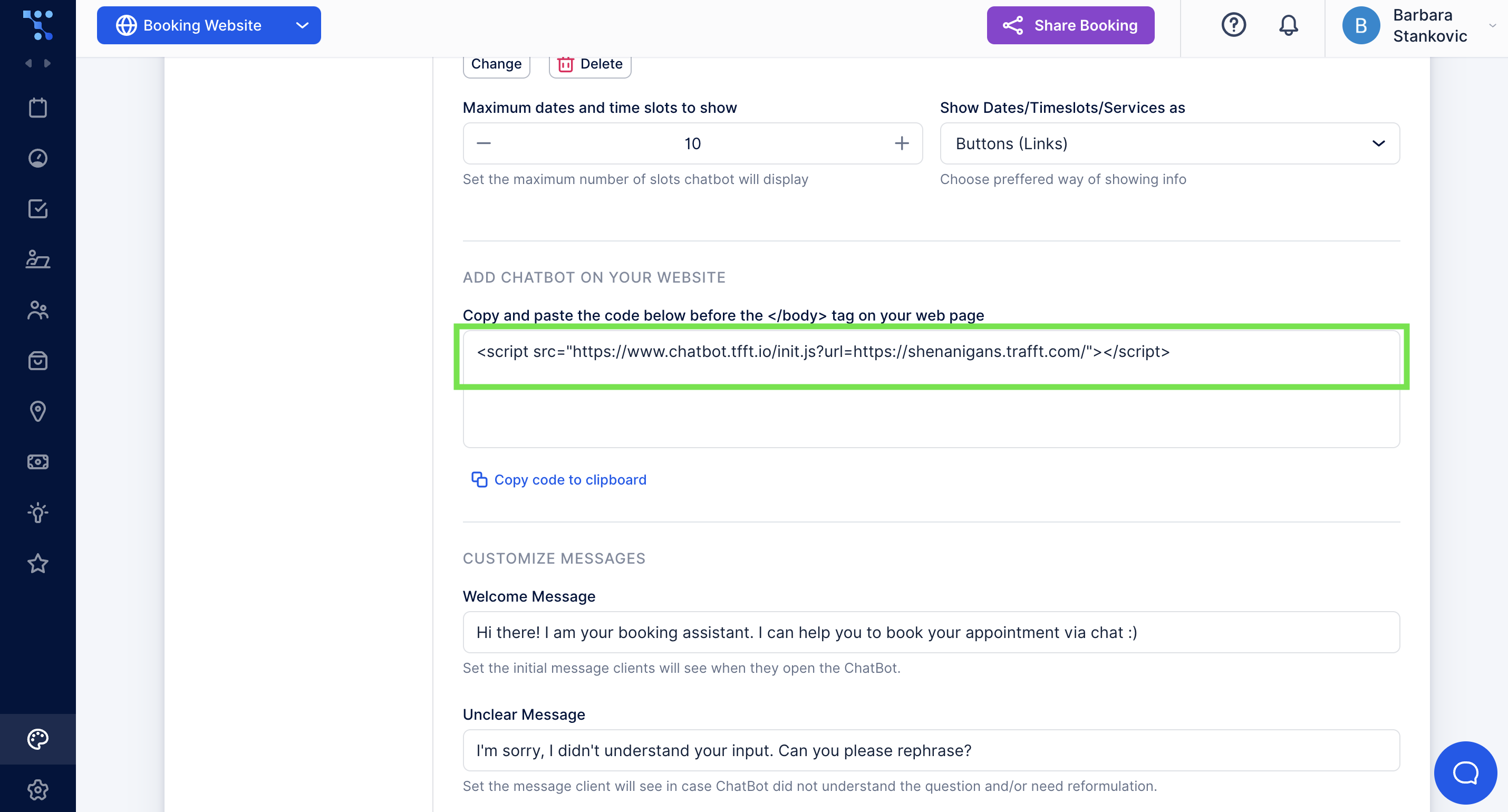
In case you are utilizing the iframe or wish to integrate the Trafft Chatbot on your website instead of your booking page, you can copy and paste the code just before the tag on your web page.

So, just before the </body> tag on your webpage, paste the following link:Code for integrating Trafft chatbot into a website instead of the booking page
How to Customize ChatBot Messages?

You can also change the sentences the Chatbot will use in conversation. Here is how to add your own:

In the Welcome message field, you can customize the first message the chatbot uses. The welcome message will be displayed instantly when the chat is open.
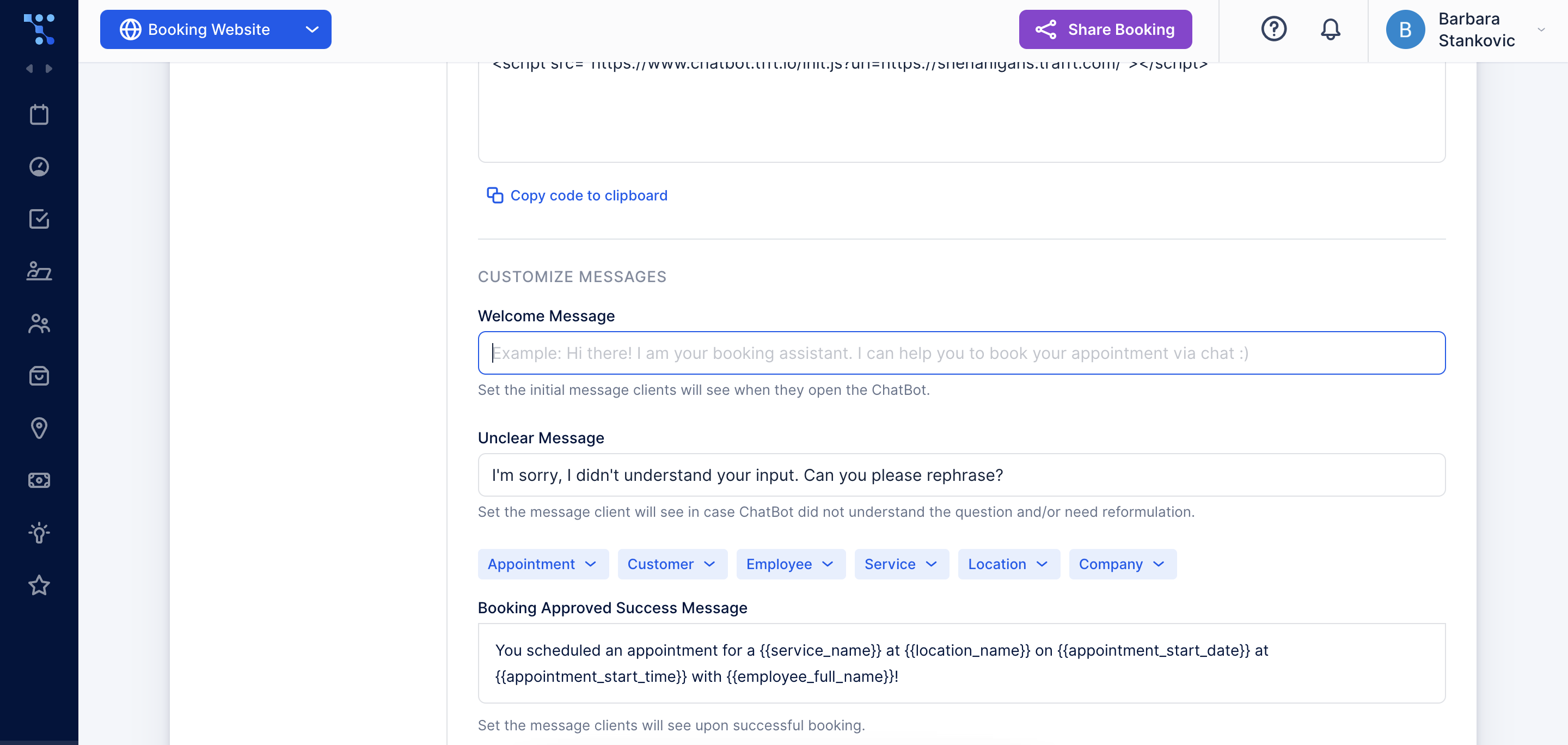
The welcome message that the bot sends as soon as the chat with a customer starts

If you don't change any of these messages, the default example message will be shown.

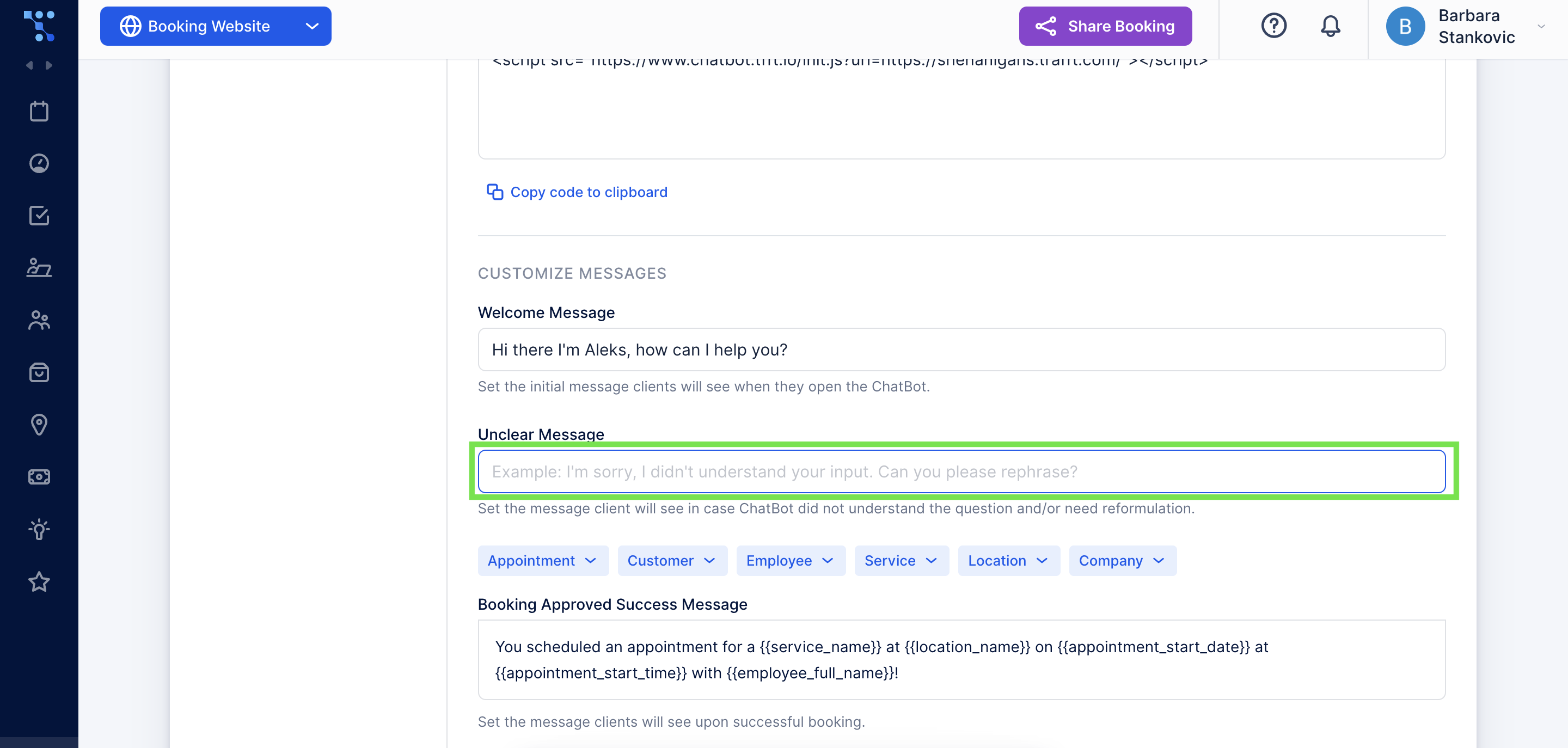
Clients will get an Unclear message if the chatbot does not understand the question or needs rephrasing.Trafft chatbot unclear message that is sent if the bot can't recognize the input
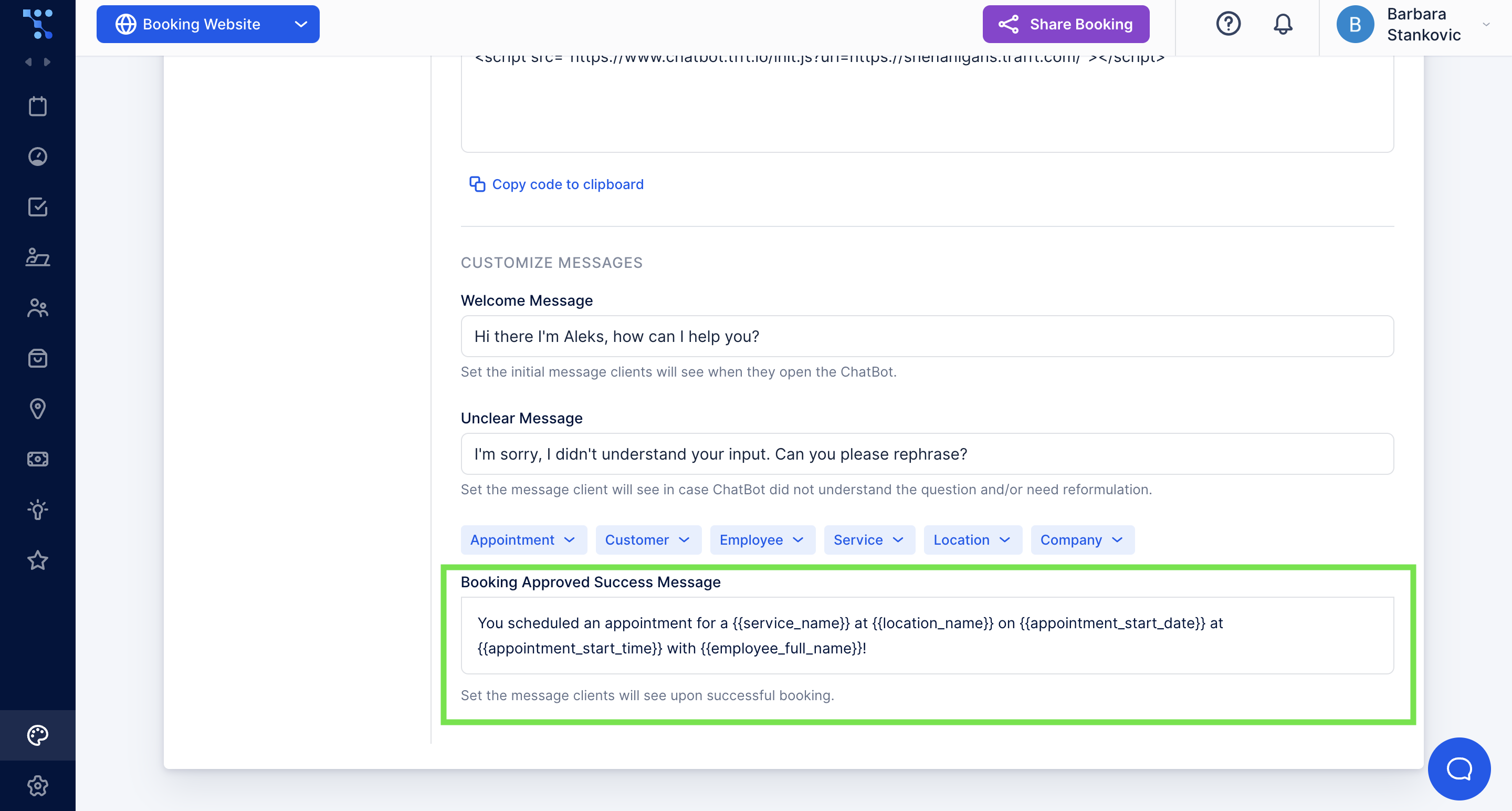
Lastly, a booking-approved success message will be displayed to your customers once they successfully book an appointment. You can personalize it using placeholders or include any other message you want them to see.Customizable booking approved message for customers who schedule an appointment through the chatbot interface
What Can a Chatbot Help You With?

Once you enable the Trafft Chatbot, it’ll be able to handle all the bookings and scheduling for your customers. Example of a booking done through the Trafft chatbot interface
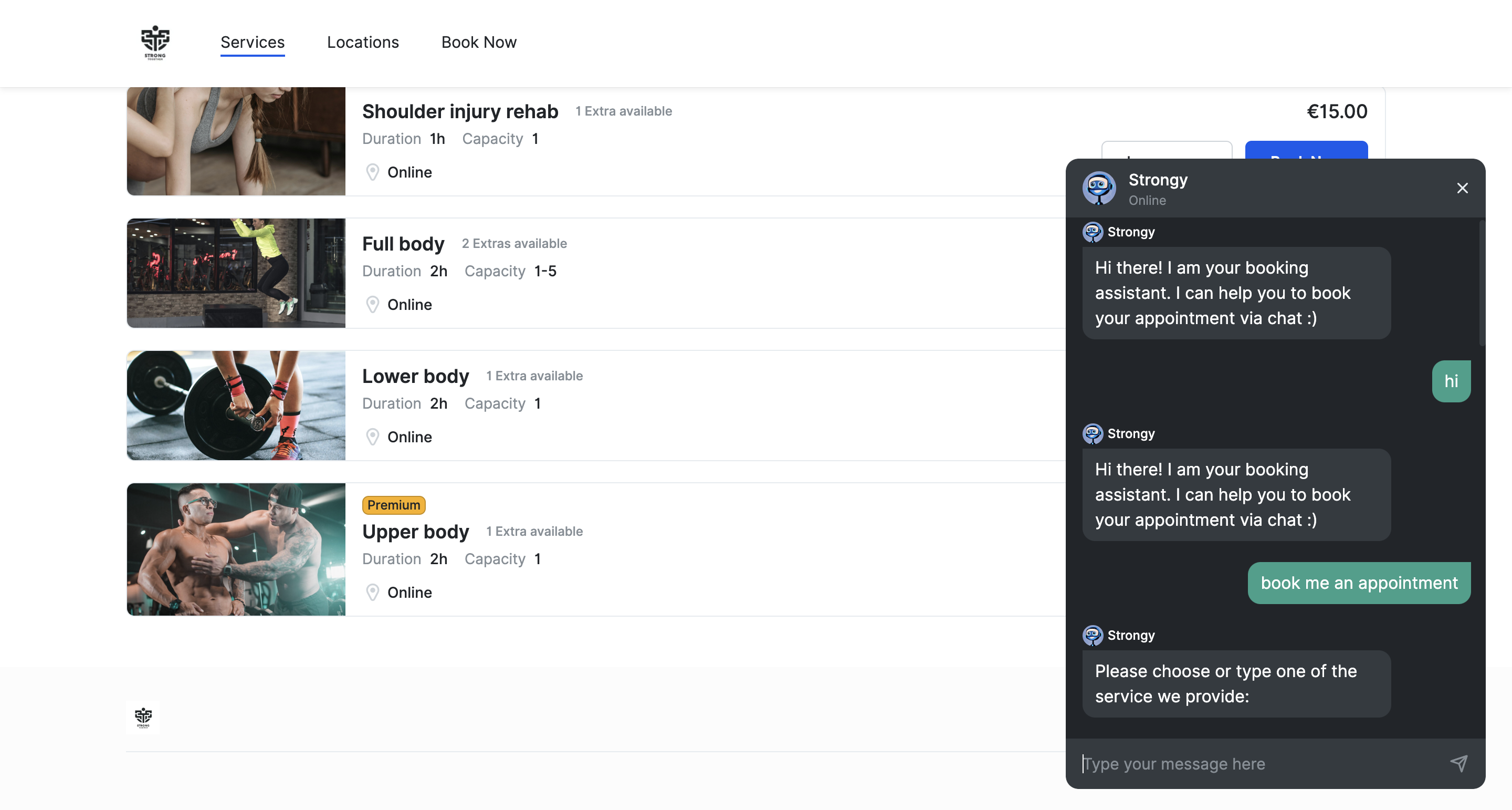
It will present them with a list of services you offer, and once they choose the one they need, the chatbot will give them available time slots.Flexibility in appointment selection and date slots a customer can expect in a conversation with the chatbot
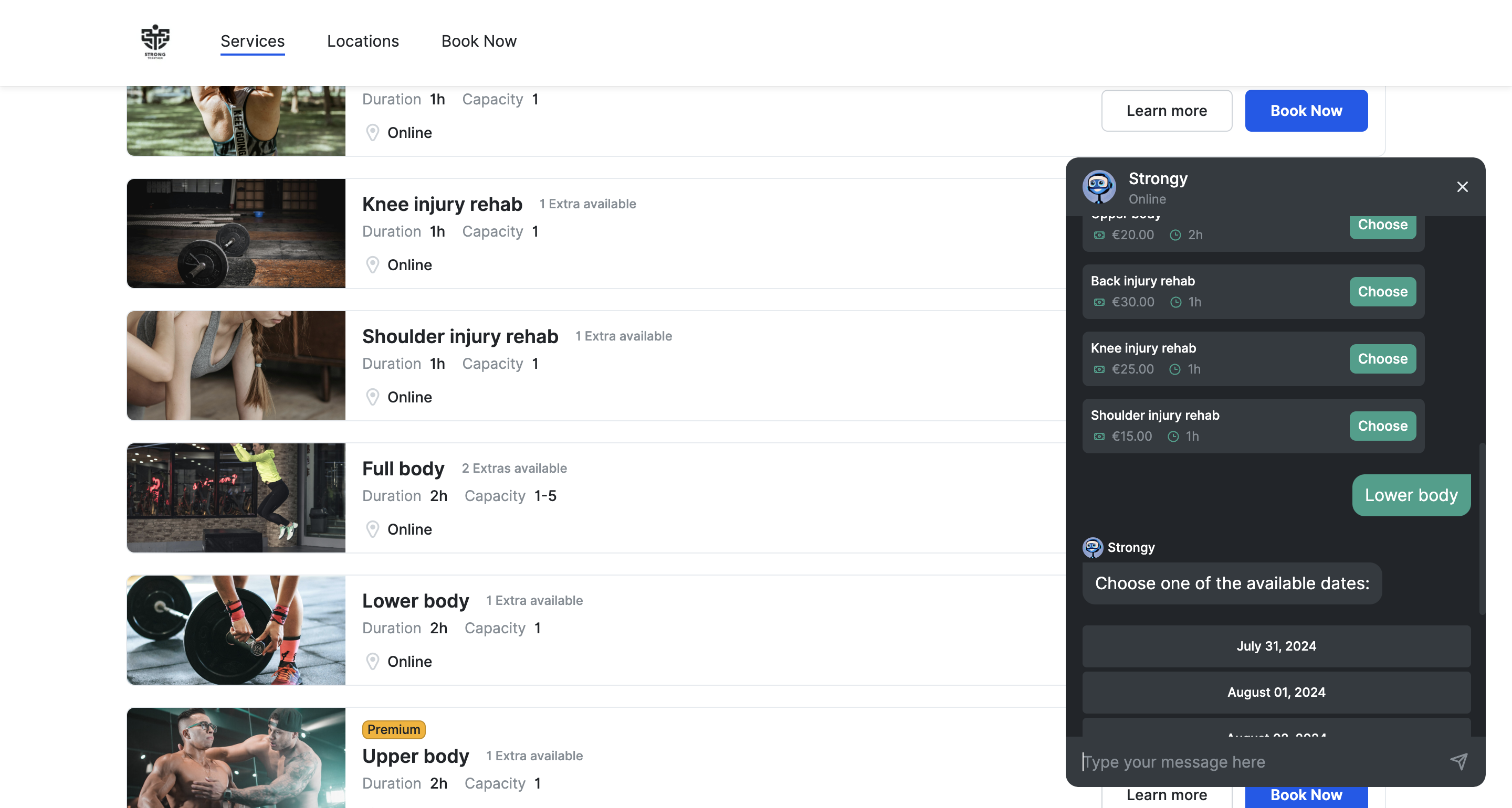
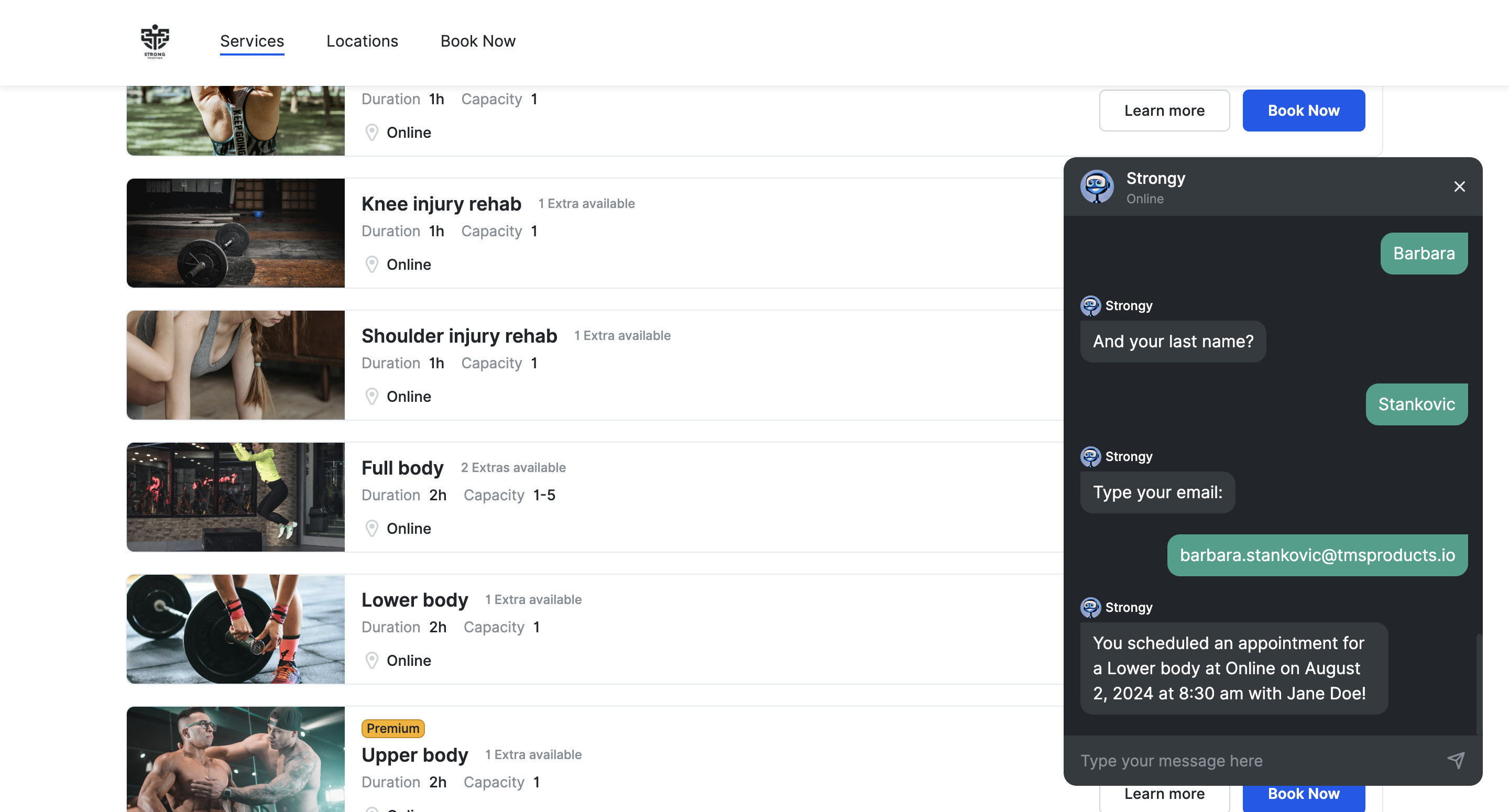
After your customers choose a date and time, the chatbot will ask for their name and email so it can send them a confirmation.Booking confirmed message sent to the customer who successfully made an appointment using Trafft Chatbot
Lastly, if you need any additional help setting up the Trafft Chatbot, here is a quick video:

Pruébalo gratis