




Begrenzte Zeit Begrenzte Zeit
Stürzen Sie sich in das Unternehmenswachstum
Bis zu 20%Off
Mit einem Gutscheincode BFCM70
Bis zu 20%Off
Schnapp dir das Angebot
ÜBERBLICK ÜBER FUNKTIONEN UND INTEGRATIONEN
  • Alle Funktionen
    Alle Funktionen

    Benachrichtigungen, Zeitzonen, Extras, Gutscheine, Rückerstattungen und mehr

  • Alle Integrationen
    Alle Integrationen

    WhatsApp, PayPal, Teams, Zoom, Zapier, Google Kalender und mehr

  • Über Google reservieren
    Über Google reservieren

    Buchungen über die Google Suche und Maps annehmen

  • WordPress-Plugin
    WordPress-Plugin

    Fügen Sie das Trafft-Buchungsformular zu jeder Seite Ihrer WordPress-Website hinzu

    Ressourcen
  • Trafft-Blog
    Blog 2
    Trafft-Blog

    Informieren Sie sich über die neuesten Informationen zu Branchentrends und holen Sie sich Tipps für die Führung eines Online-Dienstleistungsunternehmens

  • Anleitungen und Dokumentation
    Dokumente-2
    Anleitungen und Dokumentation

    Erhalten Sie eine detaillierte Erklärung, wie jede Trafft-Funktion und -Integration funktioniert

  • Unsere Geschichte Unsere Geschichte

    Lesen Sie über die Geschichte, Mission und die gemeinsamen Werte von Trafft

  • Investor Relations Investor Relations

    Melden Sie sich bei uns, wenn Sie daran interessiert sind, in Trafft zu investieren.

  • Affiliate-Partner Affiliate-Partner

    Begleiten Sie uns auf unserem Weg, Dienstleistungsunternehmen durch Automatisierung zum Erfolg zu verhelfen.

  • Warum Trafft Warum Trafft

    Erfahren Sie mehr darüber, warum Sie sich für Trafft entscheiden sollten

  • Partner Partner

    Werden Sie Partner von Trafft und erweitern Sie Ihre Reichweite auf dem Markt

  • Kontaktieren Sie uns Kontaktieren Sie uns

    Bei Fragen oder Anregungen können Sie sich gerne an mich wenden.

Funktionen
ÜBERBLICK ÜBER FUNKTIONEN UND INTEGRATIONEN
  • Alle Funktionen Alle Funktionen

    Benachrichtigungen, Zeitzonen, Extras, Gutscheine, Rückerstattungen und mehr

  • Alle Integrationen Alle Integrationen

    WhatsApp, PayPal, Teams, Zoom, Zapier, Google Kalender und mehr

  • Über Google reservieren Über Google reservieren

    Buchungen über die Google Suche und Maps annehmen

  • WordPress-Plugin WordPress-Plugin

    Fügen Sie das Trafft-Buchungsformular zu jeder Seite Ihrer WordPress-Website hinzu

Ressourcen
    Ressourcen
  • Trafft-Blog

    Informieren Sie sich über die neuesten Informationen zu Branchentrends und holen Sie sich Tipps für die Führung eines Online-Dienstleistungsunternehmens

    Blog 2
    Trafft-Blog
  • Anleitungen und Dokumentation

    Erhalten Sie eine detaillierte Erklärung, wie jede Trafft-Funktion und -Integration funktioniert

    Dokumente-2
    Anleitungen und Dokumentation
Über uns
  • Unsere Geschichte Unsere Geschichte

    Lesen Sie über die Geschichte, Mission und die gemeinsamen Werte von Trafft

  • Investor Relations Investor Relations

    Melden Sie sich bei uns, wenn Sie daran interessiert sind, in Trafft zu investieren.

  • Affiliate-Partner Affiliate-Partner

    Begleiten Sie uns auf unserem Weg, Dienstleistungsunternehmen durch Automatisierung zum Erfolg zu verhelfen.

  • Warum Trafft Warum Trafft

    Erfahren Sie mehr darüber, warum Sie sich für Trafft entscheiden sollten

  • Partner Partner

    Werden Sie Partner von Trafft und erweitern Sie Ihre Reichweite auf dem Markt

  • Kontaktieren Sie uns Kontaktieren Sie uns

    Bei Fragen oder Anregungen können Sie sich gerne an mich wenden.

Trafft Hacks: How to Create and Manage Locations

Startseite» Blog» Trafft Hacks: How to Create and Manage Locations
create and manage locations in trafft cover image

Running a business across multiple locations has its own set of challenges, especially if you have to coordinate employees who work across various sites. But with Trafft, you don’t need to worry!

Let’s dive into how to create multiple locations on your Trafft booking page, and how to manage them.

How to Create Multiple Locations?

First off, make sure you’ve activated the Multiple Locations feature on the Features & Integrations page.

trafft locations feature

If you see the “Disable” button, you’ll know the feature is activated. If the feature is not activated, you will not see it on the left-side menu.

Click on the Location section on the left-side menu, then on the "+Add Location" button to bring up a new popup.

Location details

Now, it’s time to set up all the details.
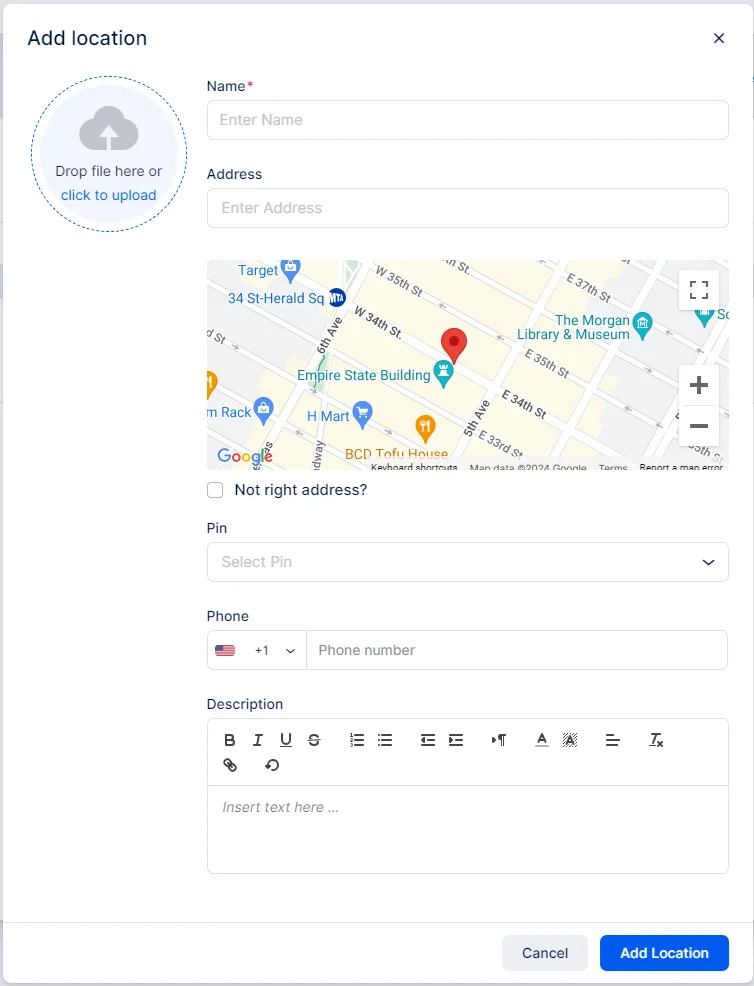
adding location in trafft

  • Location Photo: Upload the main photo for this location. It will appear on the Locations page in the admin dashboard and the booking form. Click inside the circle to choose a photo or drag and drop it into the area.
  • Name: Required field—cannot be skipped.
  • Address: Enter the location’s address. It will be searched on Google Maps to set the exact pin. This map will show on your booking website’s Locations page. If you have multiple locations, all will be displayed on a separate page for customers.

"Not the right address?" – If Google Maps can't find the address, check this box to manually enter Latitude and Longitude.

  • Pin: Choose one of the four pins to customize the map view on your booking website.
  • Phone: Add a phone number for this location. Each location can have its own phone number displayed on the booking website.
  • Description: Provide additional details about the location. This text will show on the booking form when customers select the location.

Working hours

Then, navigate to the Office Hours tab to set working hours for this location.
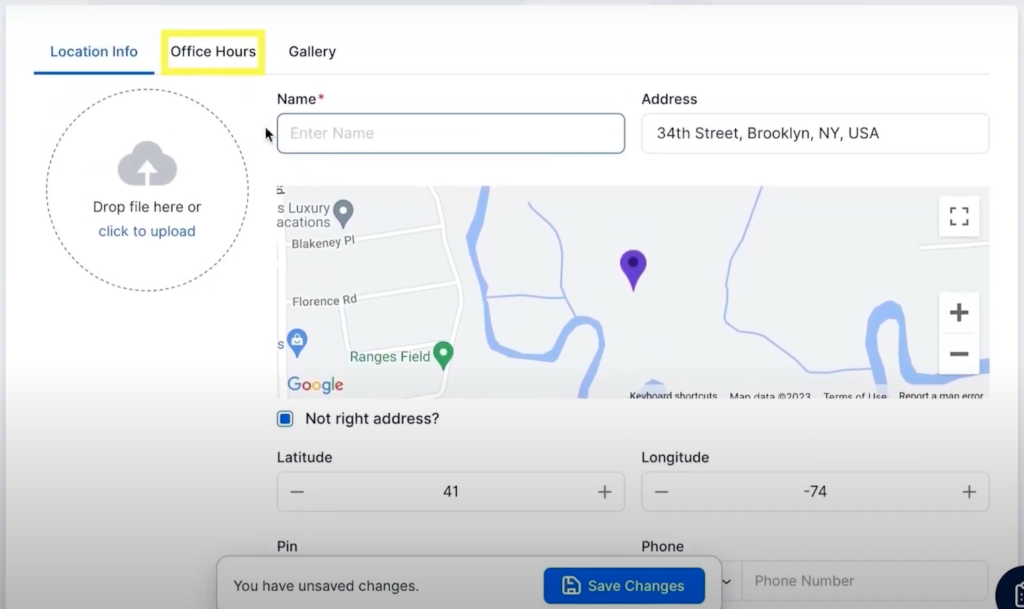
edit office hours in trafft

Keep in mind that these hours are not used for booking, but Trafft tracks employees’ working hours first and general working hours. Still, they will be displayed on the location’s page on your booking website.
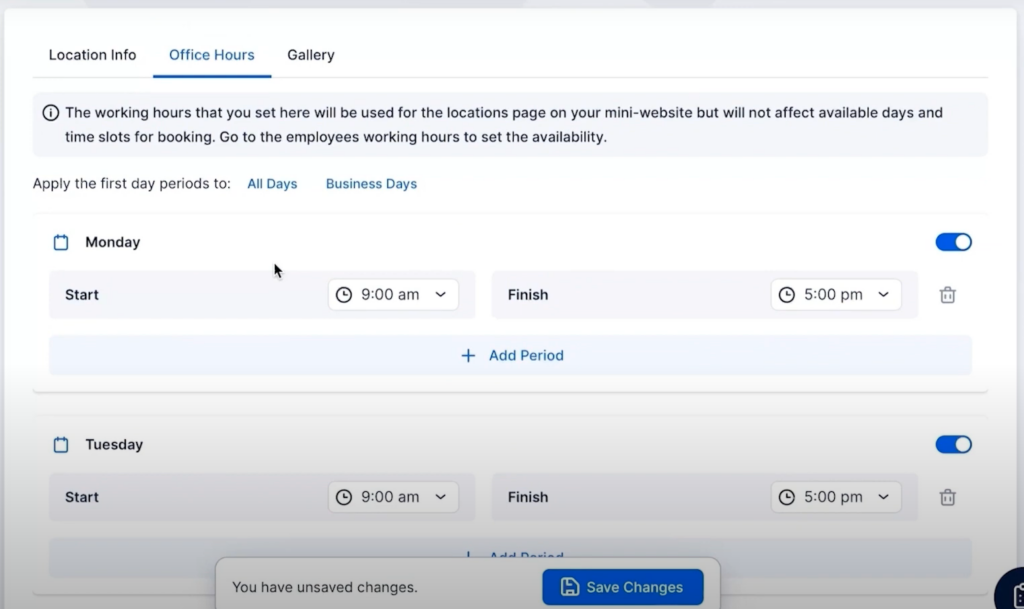
editing working hours for different locations in trafft

How to Connect the Location with the Employee?

For all of the locations you’ve just set up, you need to connect them with your employees in order to have them displayed on your booking page.

How do you do that?

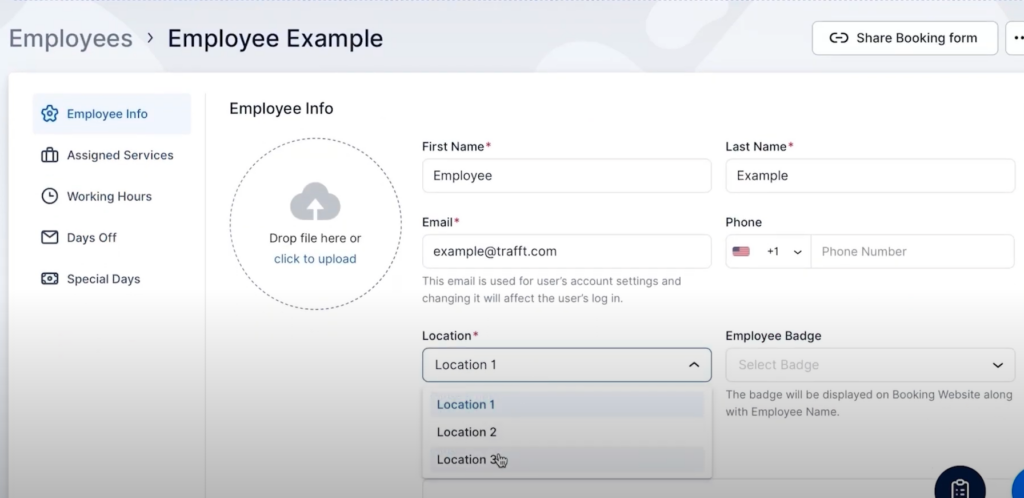
Navigate to the Employee section, choose one of the employees, and navigate to the "Edit Employee" button.
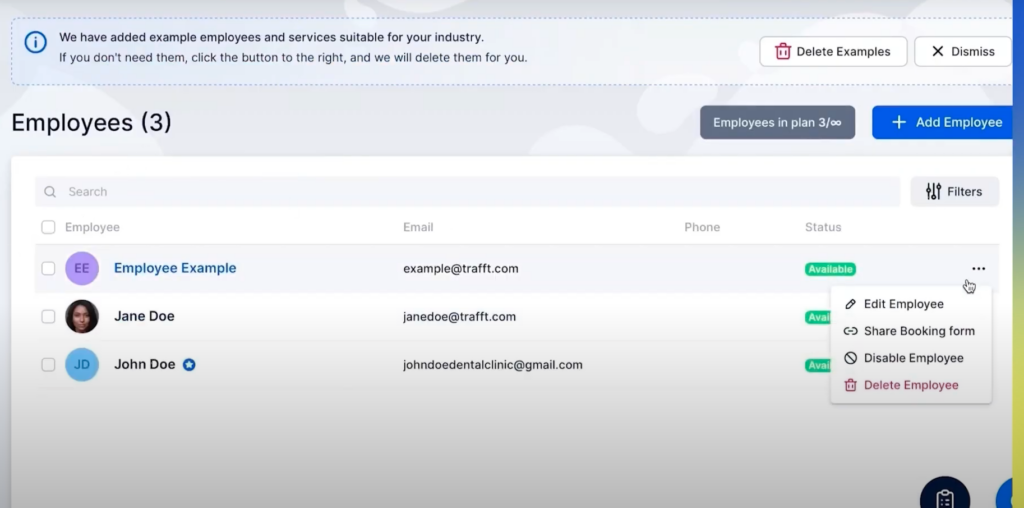
edit employee hours in trafft

In the location menu, choose the location this employee works at. You can set only one default location for one employee.
location edit in trafft

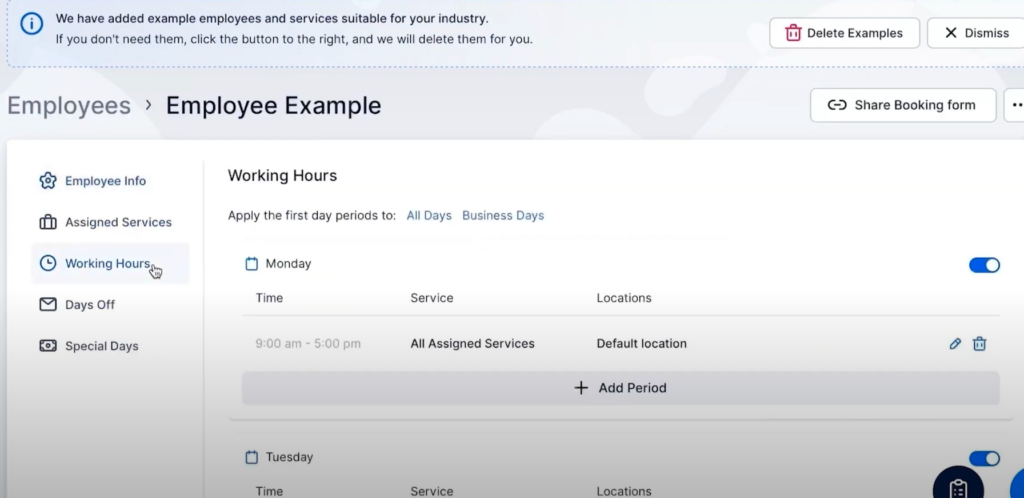
But, what if you have an employee that works in two different locations during the week? You can also easily set this up.

Simply choose the employee you want to edit, with the "Edit Employee" button. Then navigate to the Working Hours tab.
working hours tab in trafft

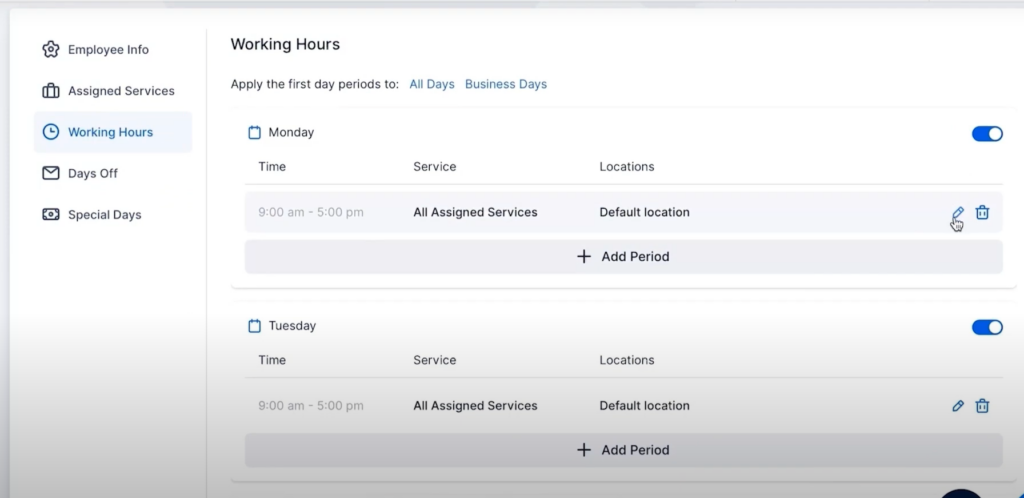
Let’s say this employee works on Location 1 on Mondays and Tuesdays. To edit this, start by clicking on the pencil button on the right.
setting working hours in trafft

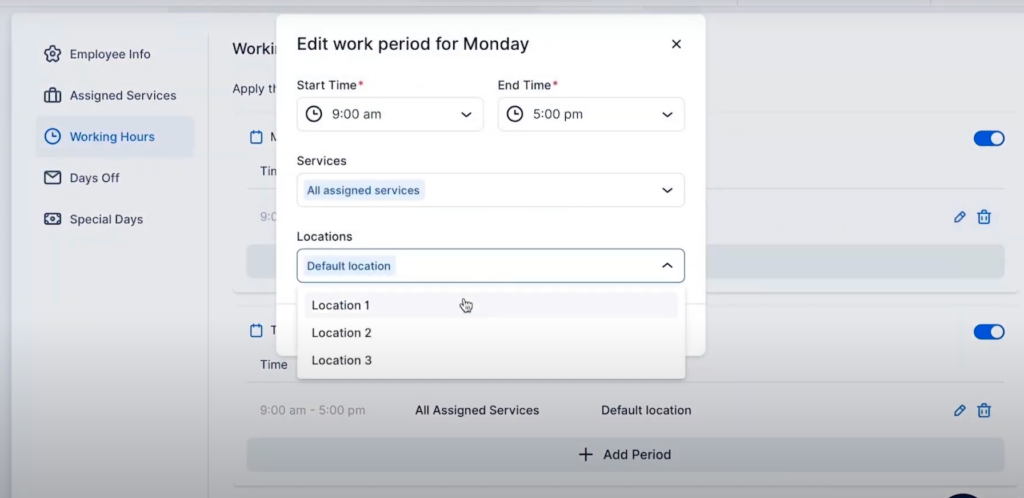
You’ll see a popup for editing the location. Choose Location 1.
employee location edit in trafft

Do the same for Tuesday, and for the rest of the week, choose Location 2.

And, that’s it! You’ve just successfully created and managed locations for your employees.

Don’t forget to read more Trafft hacks:

Jetzt kostenlos testen